3.1.0
Download
Clop 3.1.0 →
Batch mode
Drop a folder or a big pile of files and Clop opens a dedicated
window built for thousands of files, without a floating card for each
one.
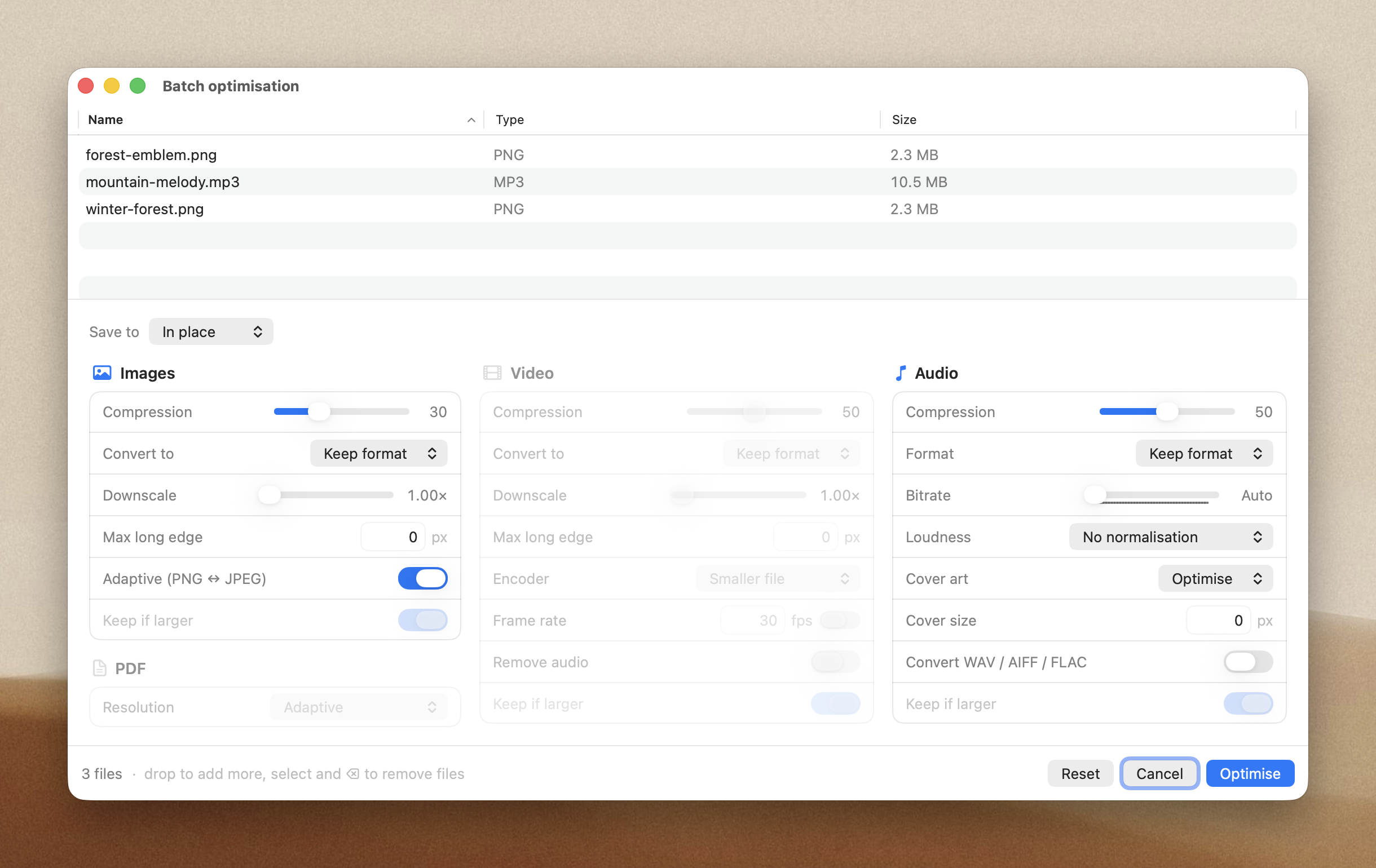
Before anything runs, each original is cloned to a safe backup, so
you can re-compress the whole set with different settings or roll it all
back.
Drop a folder with more files than the threshold you set in Settings
and it opens here automatically. You can also open it from the menubar
and drag files in.
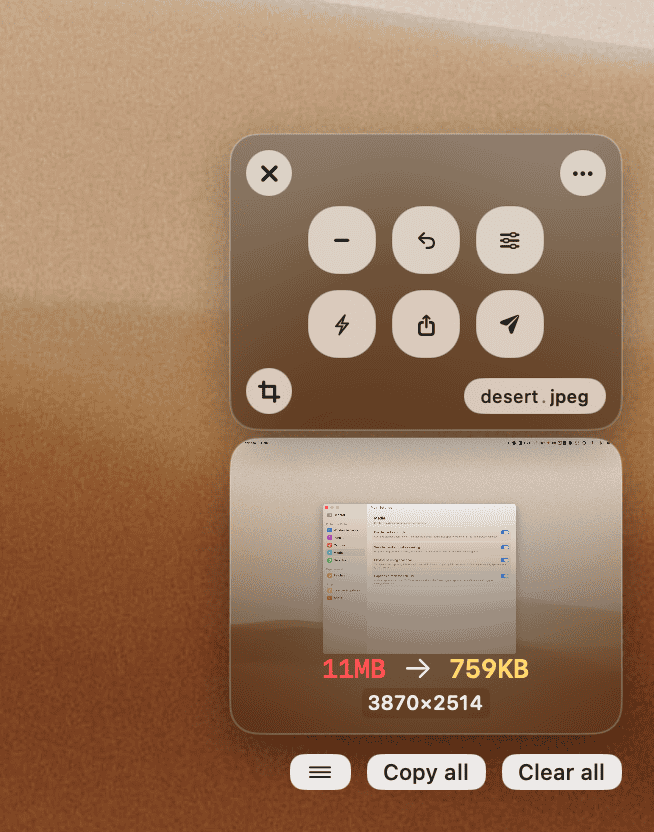
Redesigned floating results
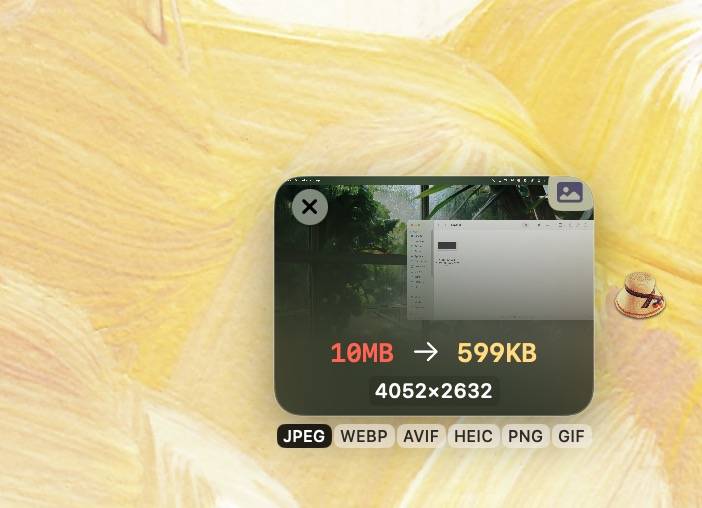
Every optimised file is now a thumbnail card, audio included, with
album cover art when the file has it. Hover a card for its action
buttons, or press Space to QuickLook it.
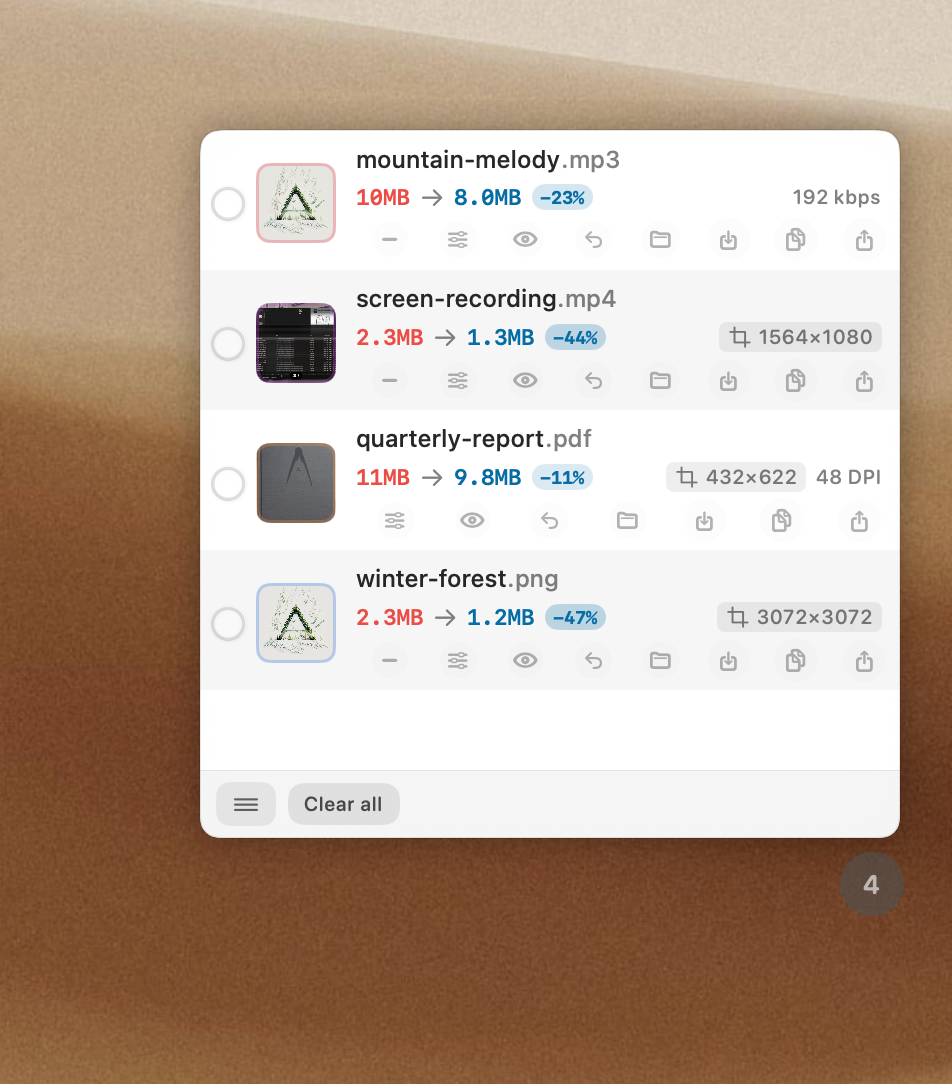
Pick files in the compact list
Click a hover checkbox to start selecting, then click any row to add
it. A bar appears for the whole set: a handle to drag them all out, plus
save, crop, downscale, bitrate and more. ⌘A selects all,
Esc clears.
Audio
Audio gets first-class controls this release.
- Cover art: choose whether embedded art is
optimised, removed, or left untouched, instead of always being dropped.
Optimising recompresses it at aggressive settings while keeping its
resolution, so it stops bloating the file.
- Extract cover art as its own image result, ready to
save or drag out, and downscale it with a slider that
shows the target resolution as you drag.
- Loudness normalisation: even out volume to a target
(Streaming, Apple Music, Podcast, Broadcast).
- Speed up audio: the playback speed change now works
on audio files, not just video.
- Compression slider: one percentage trades quality
for size, with the resulting bitrate shown as you move it.
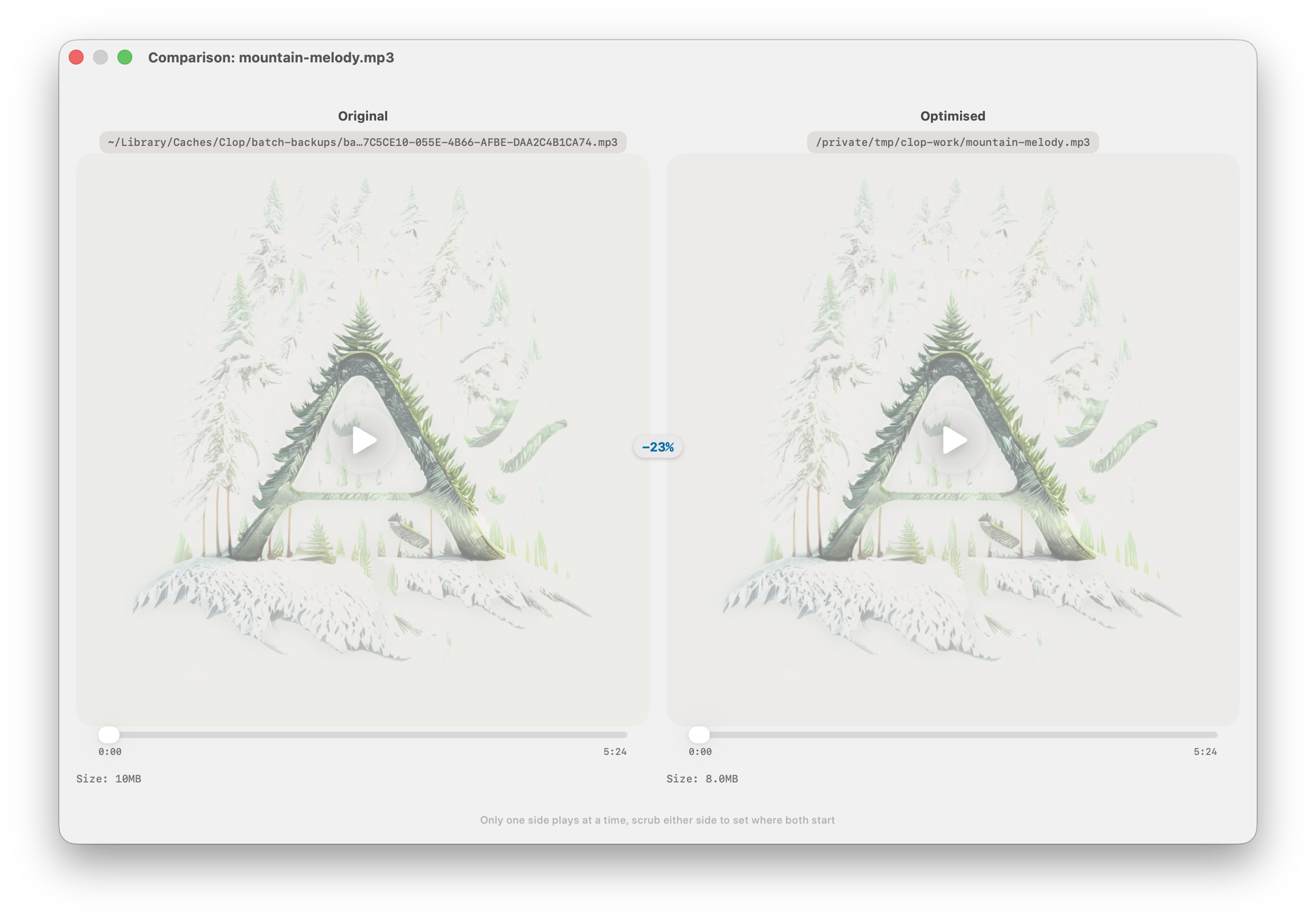
- Compare (A/B): play the original and the optimised
version back to back.
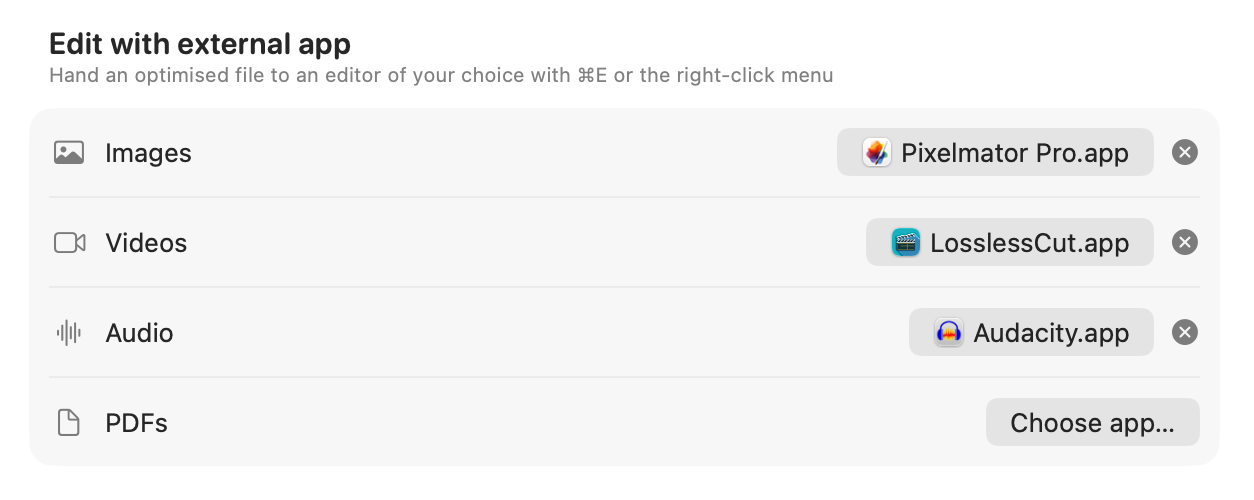
Edit with external app
Hand an optimised file to an editor of your choice with
⌘E or the right-click menu. Pick a per-type app in
Settings, for example Pixelmator Pro for images, LosslessCut for video,
or Audacity for audio.
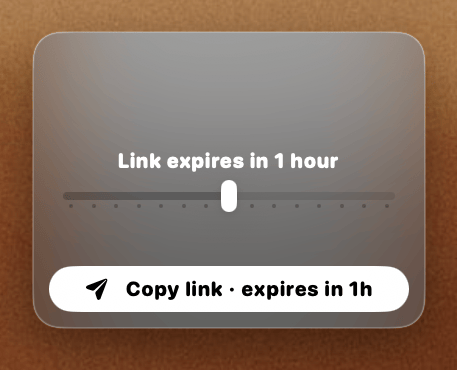
Secure send link expiration
Choose how long a "Send securely" link stays alive, from
1m up to 3d, or never. Set it as you send (a
slider on the floating result, a popover in compact mode), or change it
later from the live link button.
More for power users
- Inline pipeline scripts: run shell commands
straight from a step with
runScript(code: "sips -Z 800 $1"), no separate script file
needed.
clop pipeline prompt: print a
paste-ready reference of the whole pipeline language for an AI
assistant, then describe a task and get a working pipeline back. Add
-c to copy it to the clipboard.
Fixes
--copy always copies a file path, even when
optimisation or conversion fails (it copies the original), so you get
back as many files as you put in- Optimised file location is respected when re-optimising
from the floating result
- The close (x) button reliably dismisses a floating result
- Audio bitrate is never raised above the file's original, even when
the configured bitrate is higher
- Aggressive optimisation on audio steps the bitrate down a level
instead of doing nothing
- Files worked on with an
Option-drag copy keep their
real name instead of a temporary clop-dropzone-… name
- The Cmd-minus on hover hotkey now lowers PDF resolution and audio
bitrate, instead of only flashing the value
- Restoring the original clears the stale size, bitrate and resolution
comparison
- The downscale button no longer looks disabled for WebP, HEIC, AVIF
and TIFF images
- PDF results no longer show a second, greyed-out compression button
next to the working one
- The "drag all" handle works again instead of grabbing the result
above it, and shows a stack of file thumbnails
- Dragging a single result shows its thumbnail instead of a plain dark
rectangle
- The filename on an audio result is centred at its natural width
instead of stretching across the card
Improvements
- The filename on a card grows to full width and shrinks to fit while
you hover it, so long names stay readable
- Audio results show the cover art resolution under the bitrate
- Launching Clop while it's already running opens Settings
- The drop zone preview in Settings scrolls, and includes audio preset
zones
- Menubar menu hides keyboard shortcut hints for actions whose hotkeys
are turned off
- The compact result list stays smooth with many results and shows the
space saved as a percentage, matching the batch window
- Selecting files in the compact list keeps your single-file actions
and never reshuffles the list out from under you
3.0.0
Download
Clop 3.0.0 →
Audio optimisation
Clop now handles audio files: WAV, FLAC,
AIFF, high-bitrate MP3s.
Drop audio files and Clop converts them to AAC,
MP3 or Opus at a bitrate you pick.
WAV downsizing is also possible if the decoder supports
adpcm encoding.
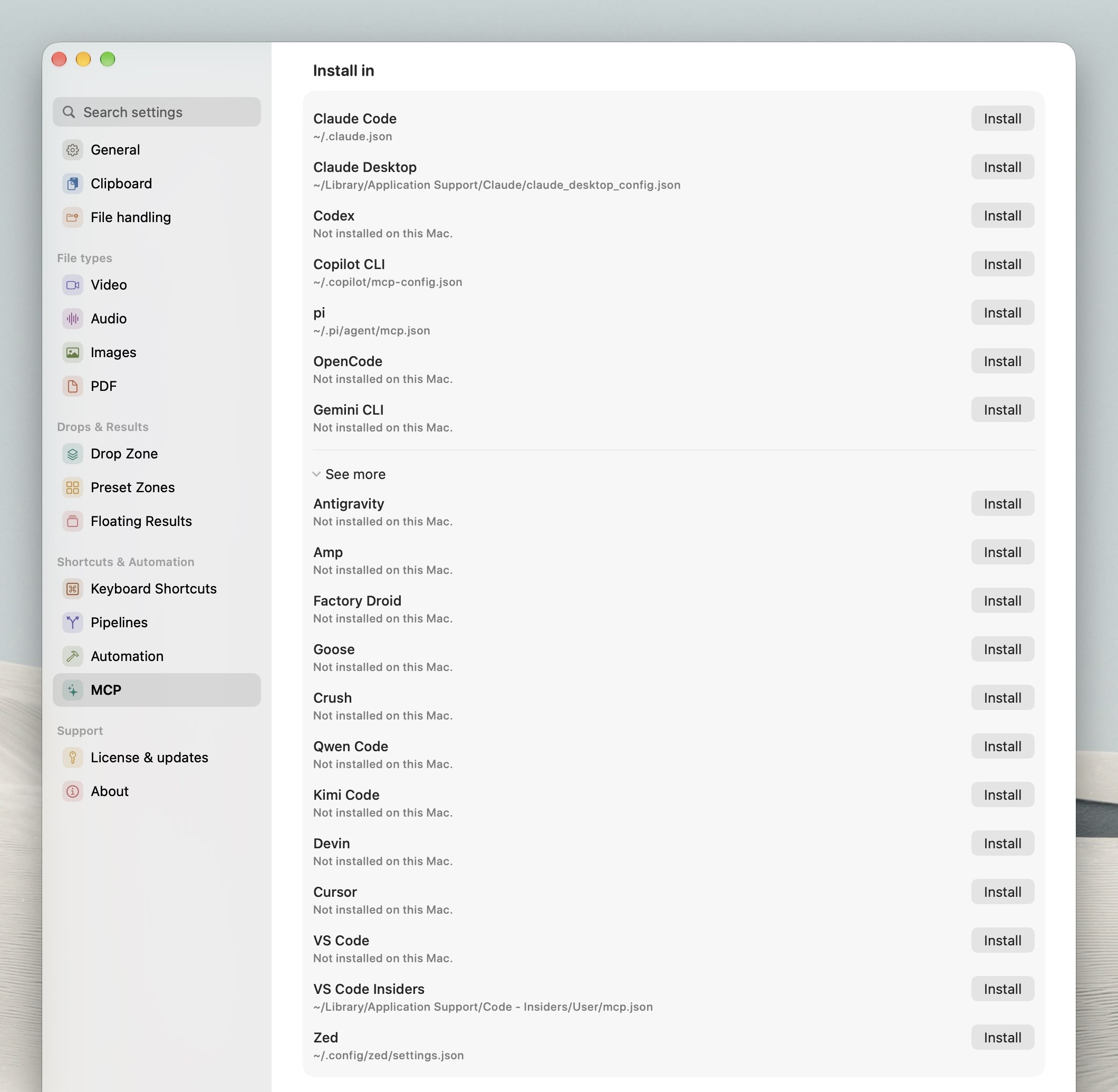
New Audio tab in Settings for watched folders,
output format, bitrate and skip rules.
Drop zone at cursor
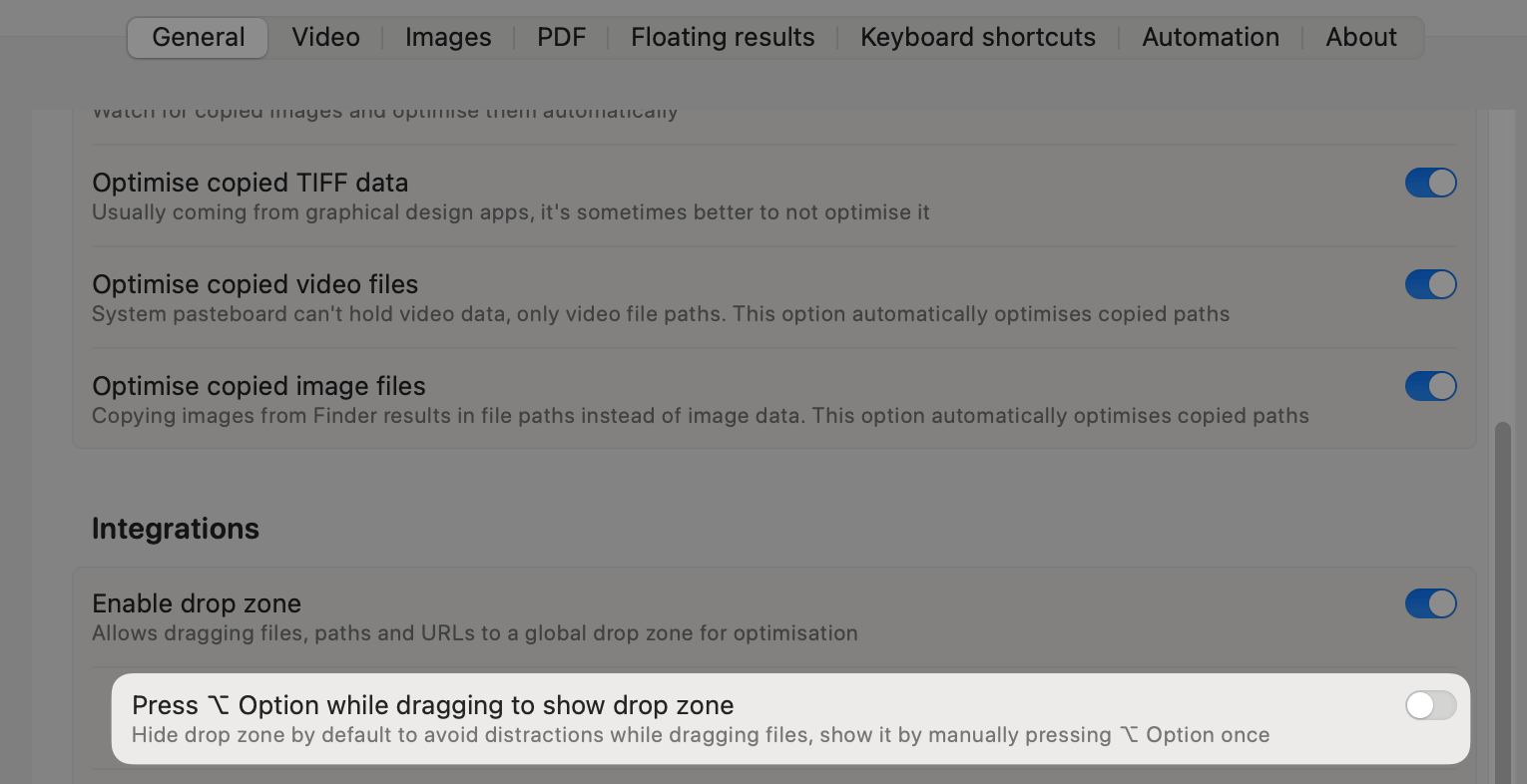
Tap ⌥ Option to show the drop zone below your cursor.
Tap again to dismiss.
No need to drag files across the screen to reach a corner.
Video encoder picker
The old Aggressive / CPU-intensive toggles are now a single
picker:
- Fast, battery efficient, larger file -- hardware
encoder, almost no CPU usage
- Slow, high quality, smaller file -- software
encoder, high CPU usage
- Visually lossless -- best quality, largest
files
Collect clipboard results
New setting to collect all clipboard optimisation results instead of
always replacing the last one.
Every image you copy gets optimised and added to a list. Paste them
all at once into apps that accept multiple files.
There's also a new drag handle that can drag all results at once.
PDF pages as images
Right-click a PDF result to extract its pages as optimised JPEG or
PNG files.
Single-page PDFs get a Convert to image option that
creates a new draggable result. Multi-page PDFs get Extract
pages as images which saves all pages to a folder you choose,
with a progress bar on the PDF result.
Send files securely
Share any optimised file over an encrypted peer-to-peer connection.
No upload, no server storage, unlimited size.
Click Send file securely from the right-click menu
or the side button, and a link is copied to your clipboard. The receiver
opens the link in a browser and downloads directly from your Mac over
WebRTC. The link stays active until you stop it or quit Clop.
Active sends appear in the menubar menu where you can copy the link
again or stop individual sends.
JPEG XL support
Clop can now read and write JPEG XL files. Drop a JPEG XL file to
convert it to a more widely supported format, or export an optimised
image as JPEG XL for maximum quality and compression. The resulting file
will have the .jxl extension.
AV1 video support
Clop can now read and write AV1 video files. Drop an AV1 file to
convert it to a more widely supported format, or convert any format to
AV1 for maximum quality and compression.
AV1 does not have its own file extension, I decided to use the MKV
container for AV1 encoding to make it easily distinguishable from the
more common H.264 and HEVC formats that use MP4. The resulting file will
have the .mkv extension.
Pipelines, Automation and more powerful presets
Every action done by Clop is now part of a fully editable pipeline
with steps like optimise, convert,
downscale etc.
This allows us to always work on the original file and avoid double
encoding and losing quality. It also makes backups more resilient to
encoder failures.
Automation
The fiddly Shortcuts approach for automation was replaced with a
pipeline editor that can do things like:
on image arriving in ~/Desktop/lowtechguys
- ->
crop(width: 1600) ->
optimise(encoder: lossless)
- ->
copy(to: "~/lowtechguys/img") ->
convert(to: webp, location: sameFolder)
on video copied to clipboard
- ->
crop(width: 1200) ->
optimise(encoder: fast, location: tempFolder)
on PDF arriving in ~/Downloads
if(nameContains: "invoice") ->
copy(to: "~/Documents/Invoices/%y-%m-%d_%f")
extractPagesAsImages(format: jpeg, quality: medium, location: sameFolder)
Presets
Same idea for presets, they're no longer limited to running
Shortcuts. They can run full pipelines which are also saved in a library
for reuse in automation if needed.
Making a Preset Zone that converts the dropped image to
webp is as simple as writing
convert(to: webp).
PDF DPI control
PDF optimisation DPI can now be adjusted:
- The minus button on a PDF result opens a slider with stops at
300, 250, 200, 150,
100, 72 and 48 DPI
- Drag to re-run the optimisation at the chosen DPI.
- Aggressive optimisation uses adaptive DPI by
default
- Clop inspects the image resolutions inside each PDF and picks a DPI
that compresses the most without visibly hurting quality
- Pick a fixed value from the slider or the PDF
settings to opt out.
- Two new settings under PDF let you set the default
DPI for normal and aggressive optimisation
300 means no downsampling.
- Pipelines accept a
dpi parameter on the optimise step,
e.g. optimise(dpi: 150).
Parallel PDF optimisation
Large PDFs (larger than 150 pages) will be split into PDFs of 100
pages and optimisation will run in parallel on those splits. This should
make PDF optimisation 4x faster on large PDFs and fix cases where it
might not work on >200 pages.
Hidden results without losing the drop zone
Floating results are now optional in more places, without taking the
drop zone with them.
- Per watched folder, toggle floating results off in
the watch paths lists. Optimisation still runs, the result just doesn't
pop up
- Per pipeline, the new
hideResult flag
lets an automation copy a file, run a Shortcut, or send something
silently
- The drop zone keeps working even when floating
results are disabled globally
Ignore clipboard from specific apps
A new Ignored apps list under clipboard settings
blocks selected apps from triggering optimisation.
Improvements
- Re-optimise with encoder... submenu for videos,
replacing the old aggressive toggle
- Dragging files from results now provides the real file path instead
of a SwiftUI temp file
- Add a Reset button for the working directory
path
- Optimised images copied to clipboard no longer trigger a second
optimisation pass
- Settings now use a sidebar list instead of the old top tab bar
- Fall back to native resizing when
vipsthumbnail fails
so downscaling no longer errors out