![]()


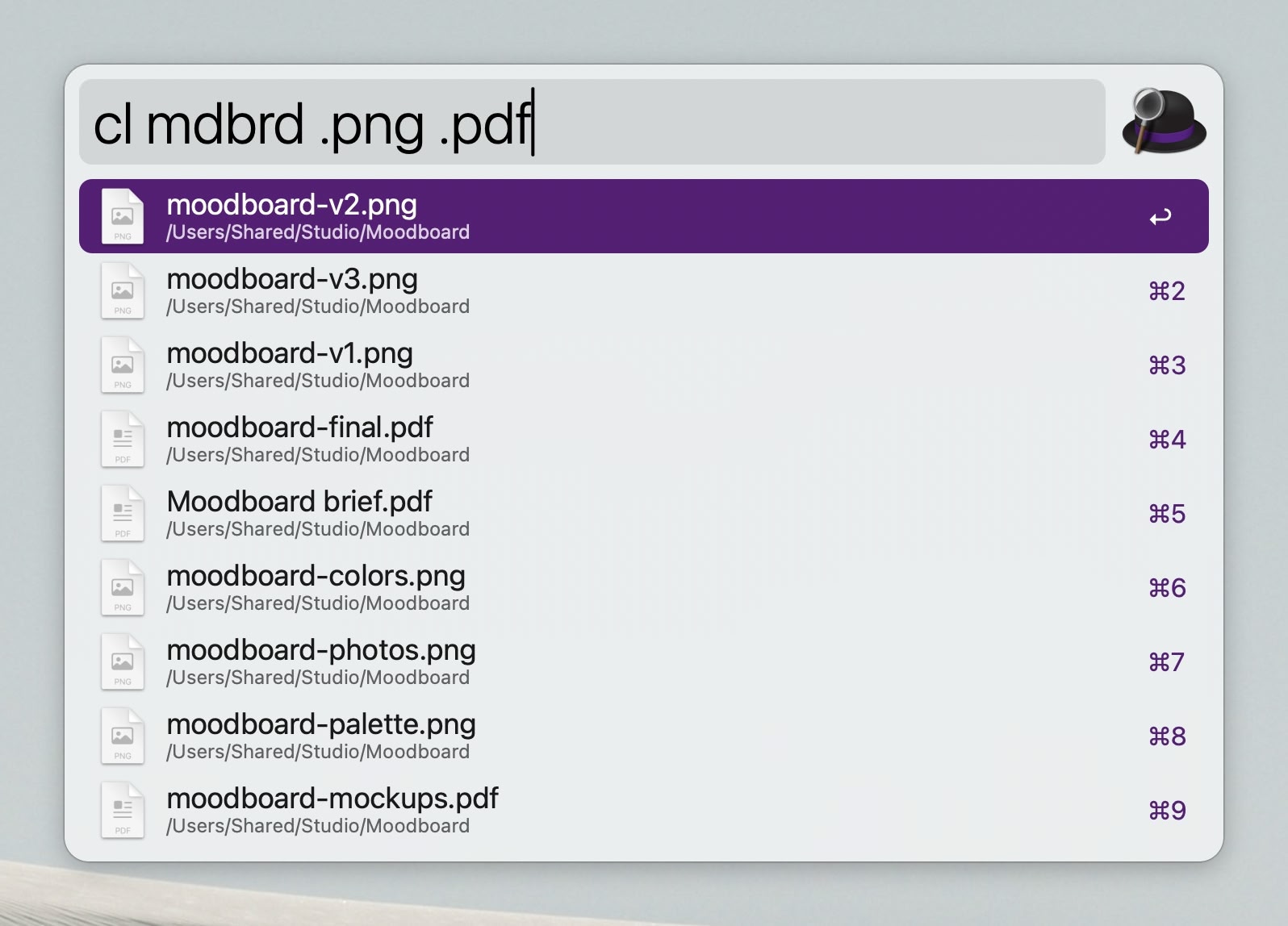
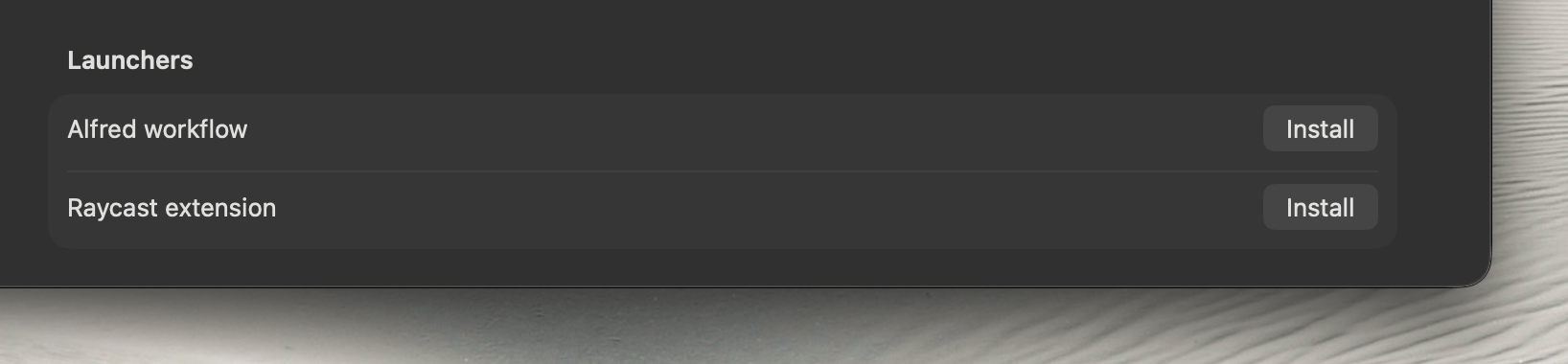
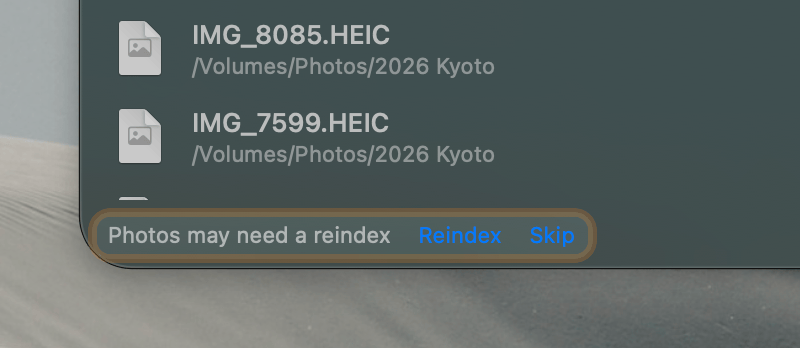
cl and reindex with clreindex. You can install
it, and the Raycast extension, in Settings > General


cling open,
cling everything on|off|delete,
cling volume follow|unfollow|skip-reindex and
cling search --search-bar

Typo tolerance: a misspelled search still finds
the file, so colour finds color and
seperate finds separate
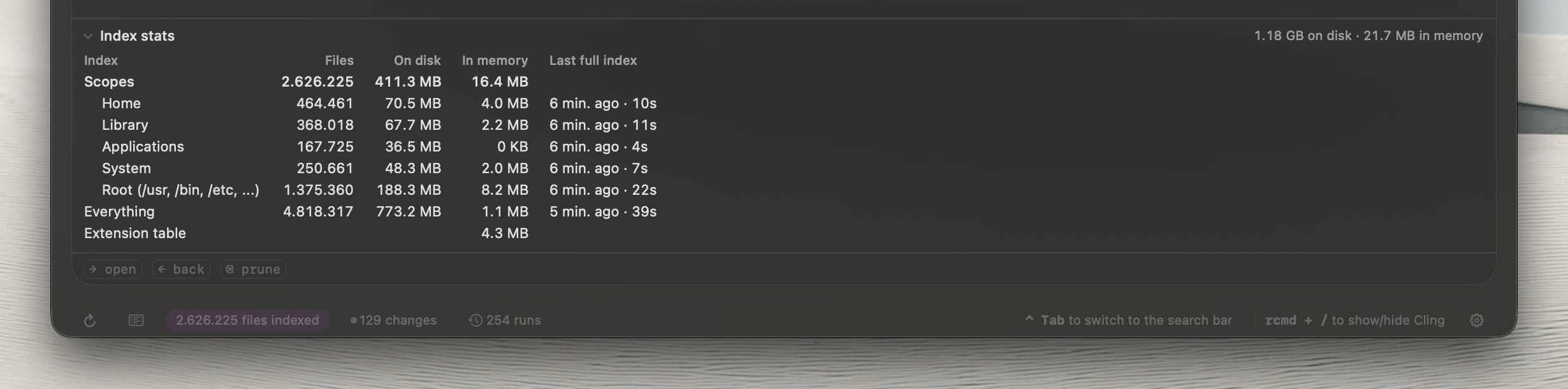
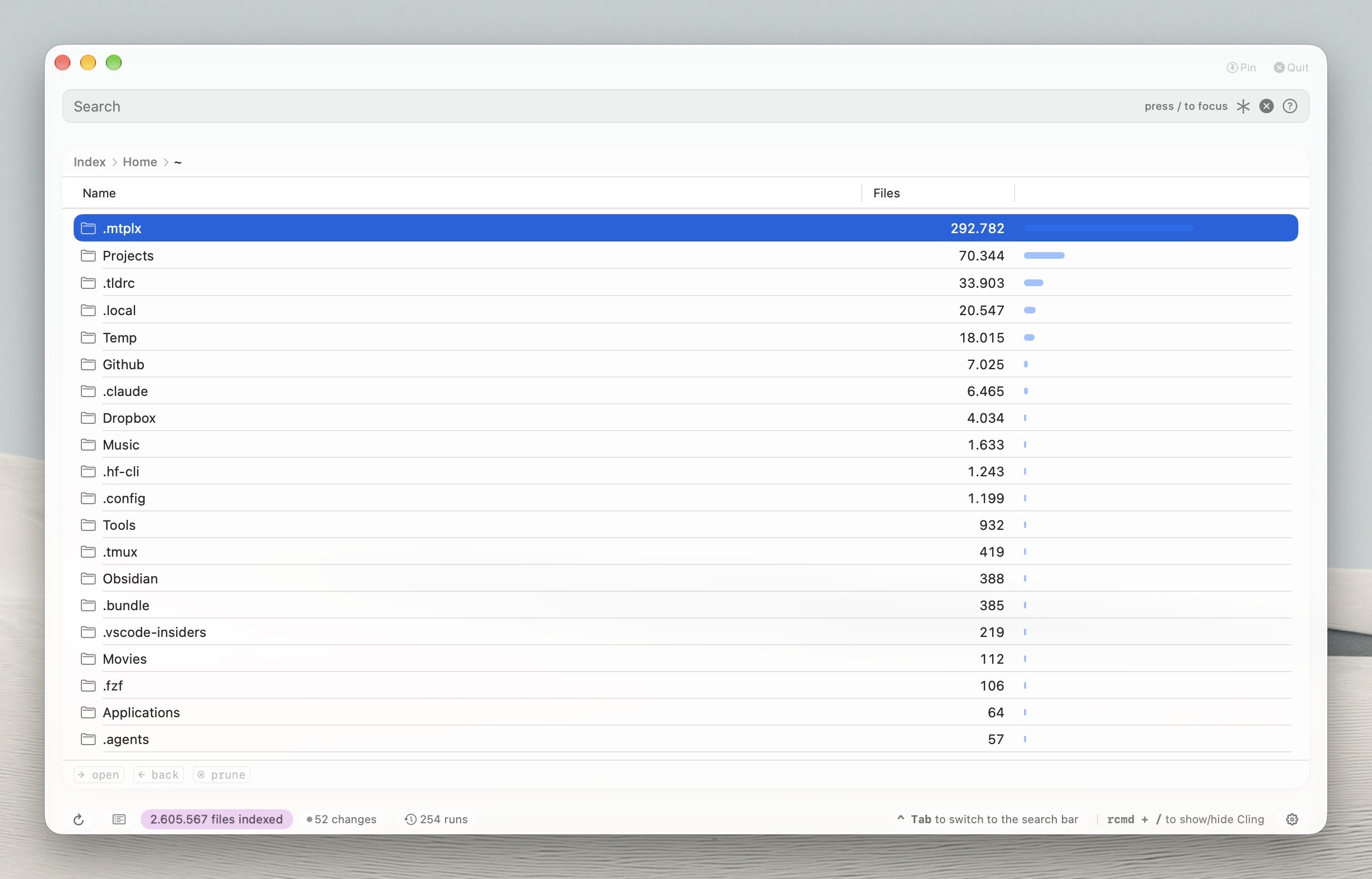
Index stats: files, size on disk, memory and last full index for every scope, drive and Everything, at the bottom of the index size view

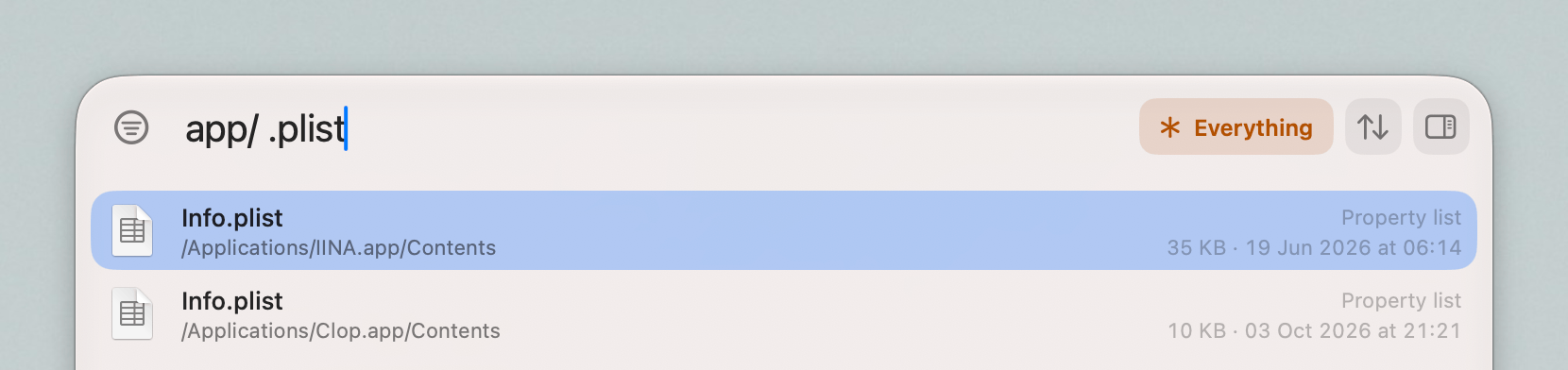
Open and Save panels: Drop to Focused
Element (⌥⏎) takes an Open or Save panel to the
selected files and selects them, without moving the cursor
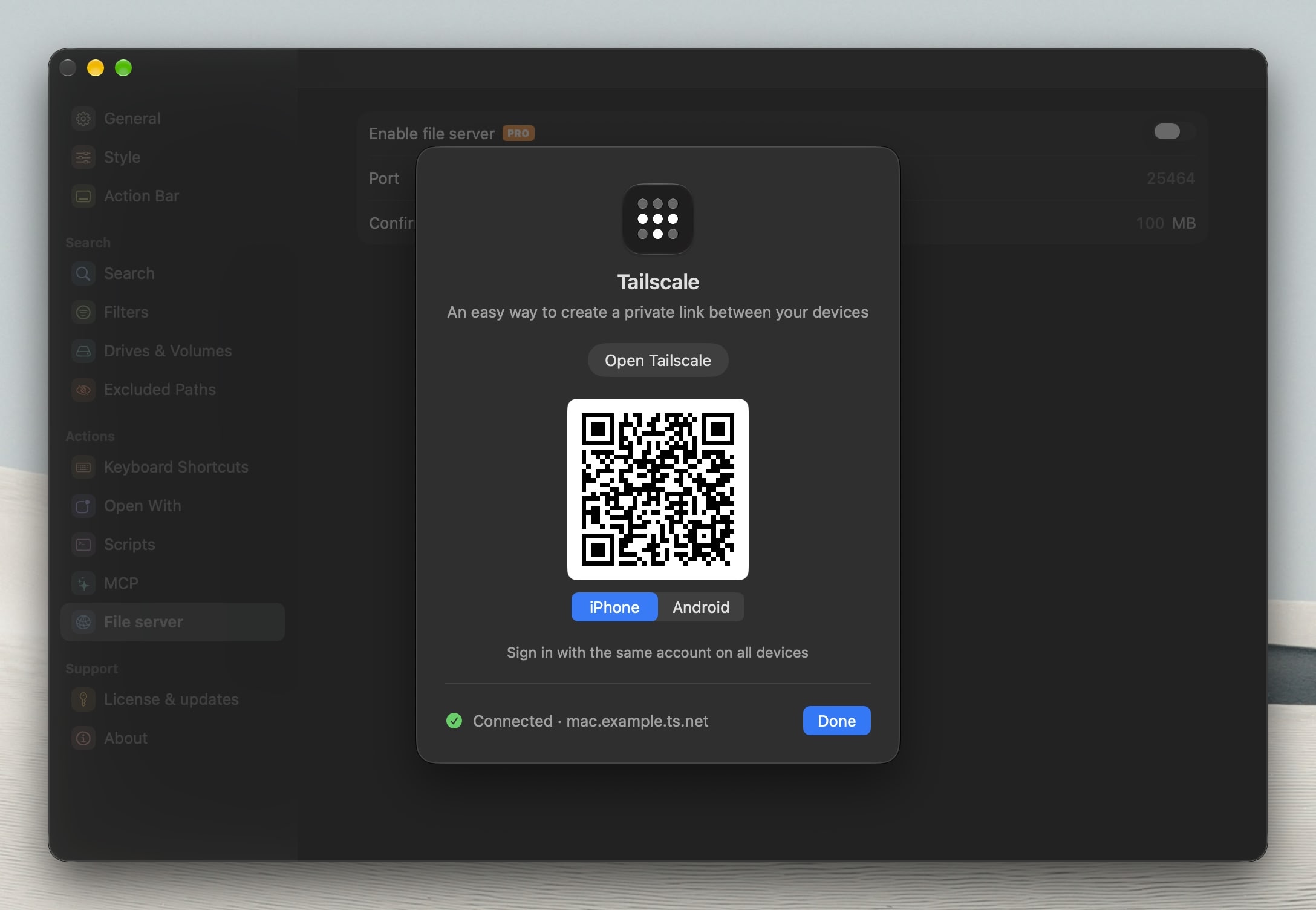
Remote access: Tailscale setup for reaching the file server away from home, in Settings > File server


cling reindex --wait reports how many entries it
indexed instead of 0cling reindex --everything --wait shows the new walk's
progress instead of the old index's size from the startcling explain finds the scope and ignore rules of paths
under /tmp, /var and /etc
→ on a file searches inside its folder, with the file
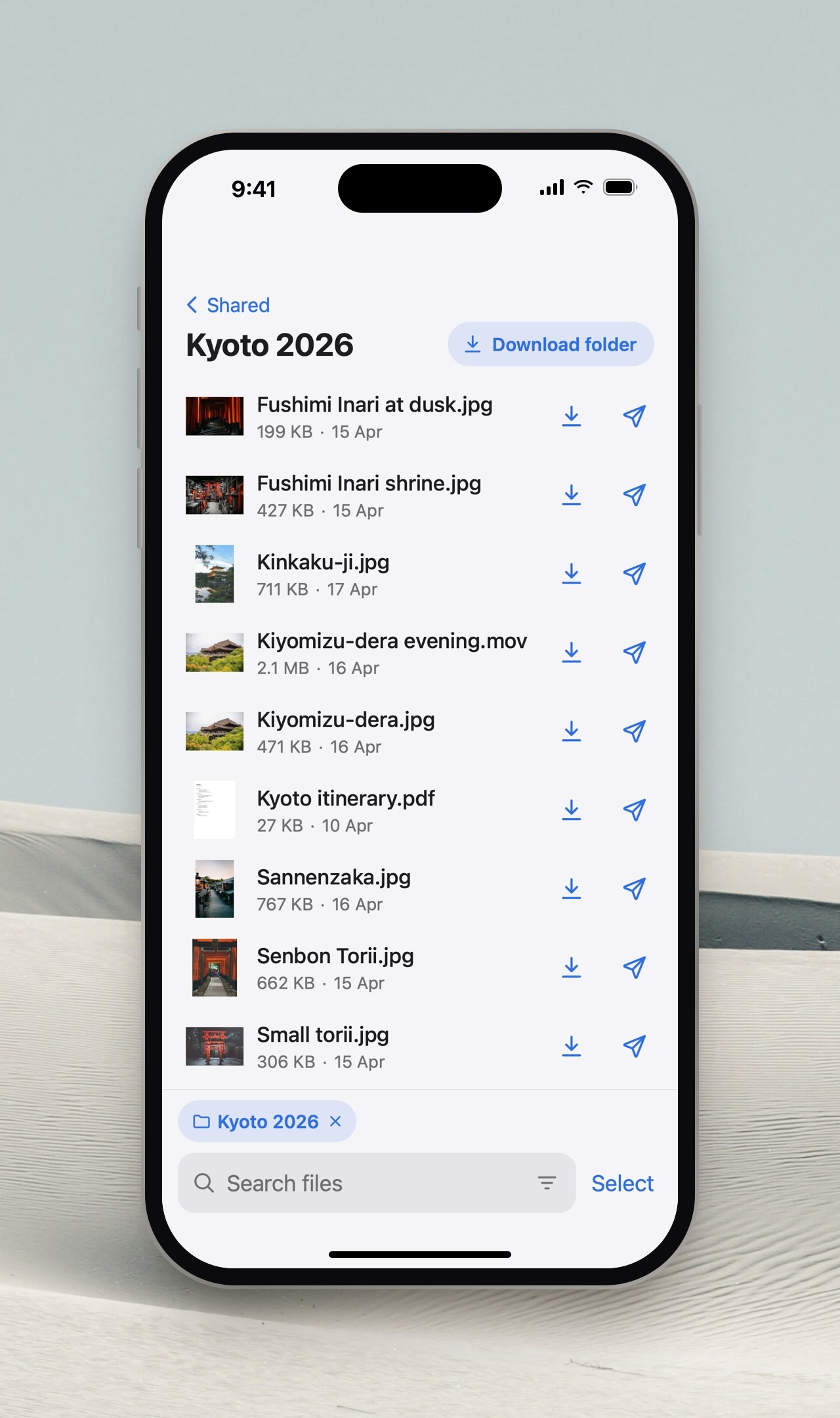
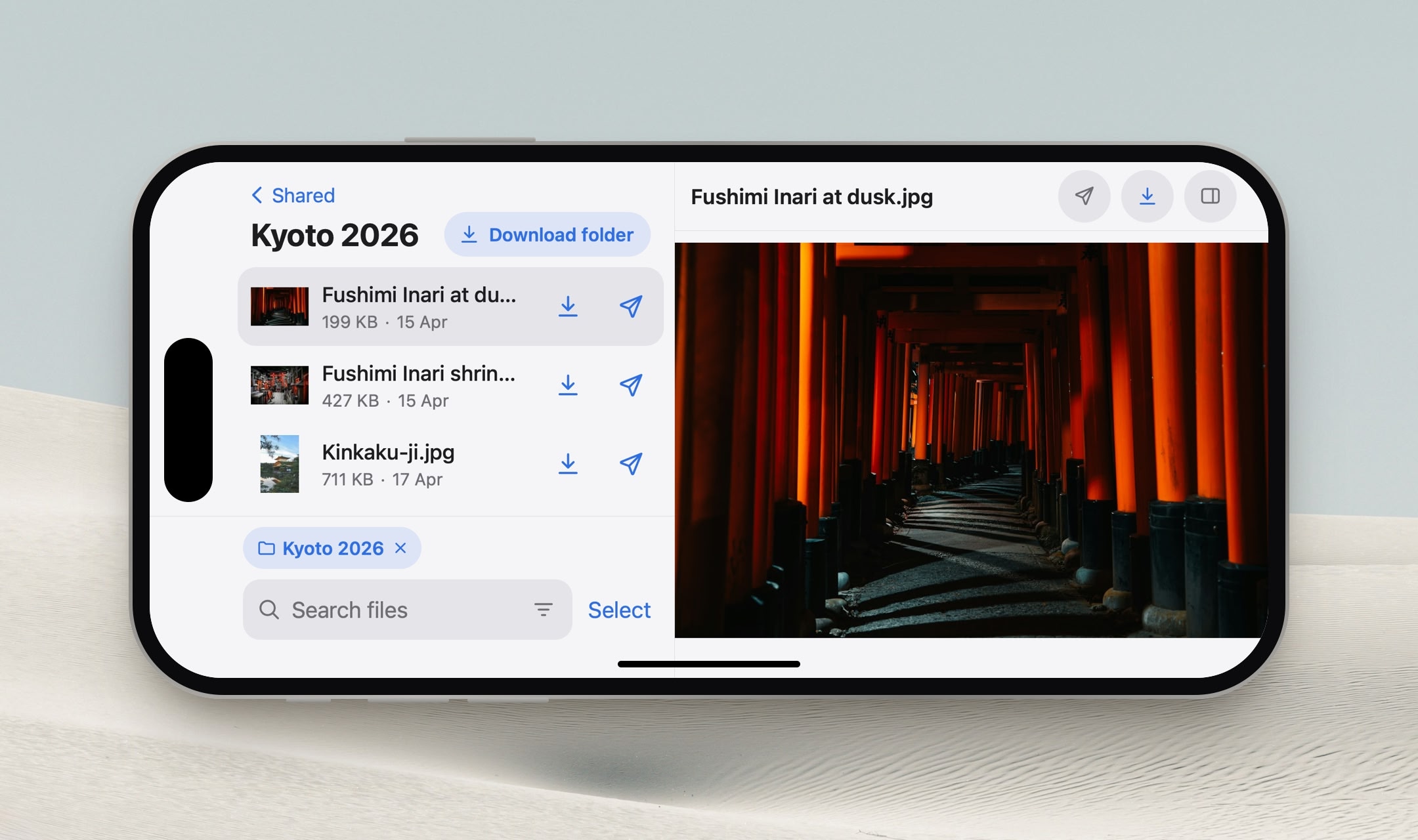
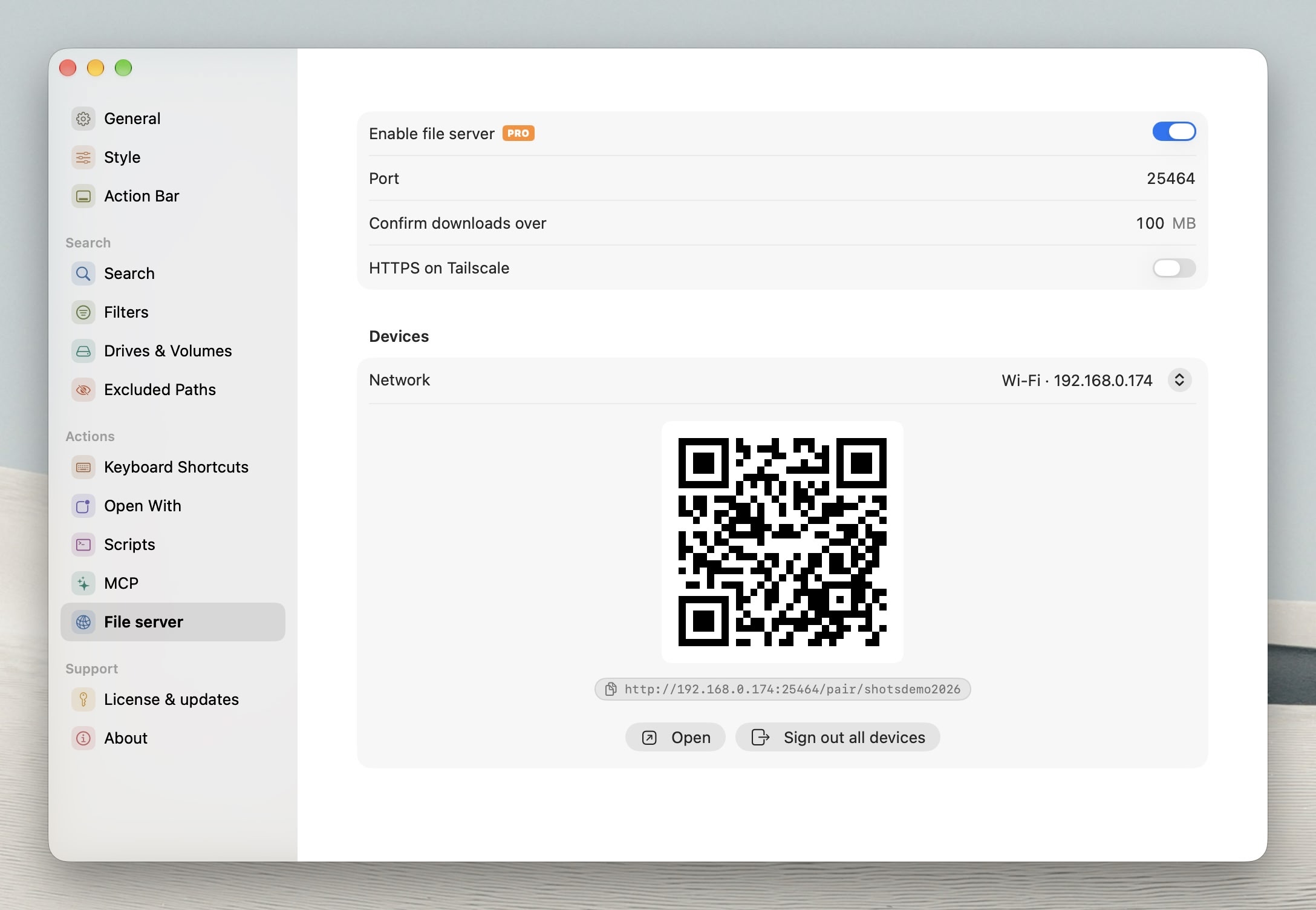
still selectedNeeds Cling Pro: turn it on in Settings > File server, then scan its QR code or paste its link to sign in
The same search options as the Cling window: scopes, drives, Everything, quick filters and folder filters
Tap Select or glide two fingers down the list to pick files (Select All works too), then download them, zip them, or share a Send Securely link to them
Folders and selections download as ZIPs that pick up where they left off if the connection drops, and videos play without downloading first
On a phone, files open in a viewer: swipe down to close it, sideways to go to the next or previous file
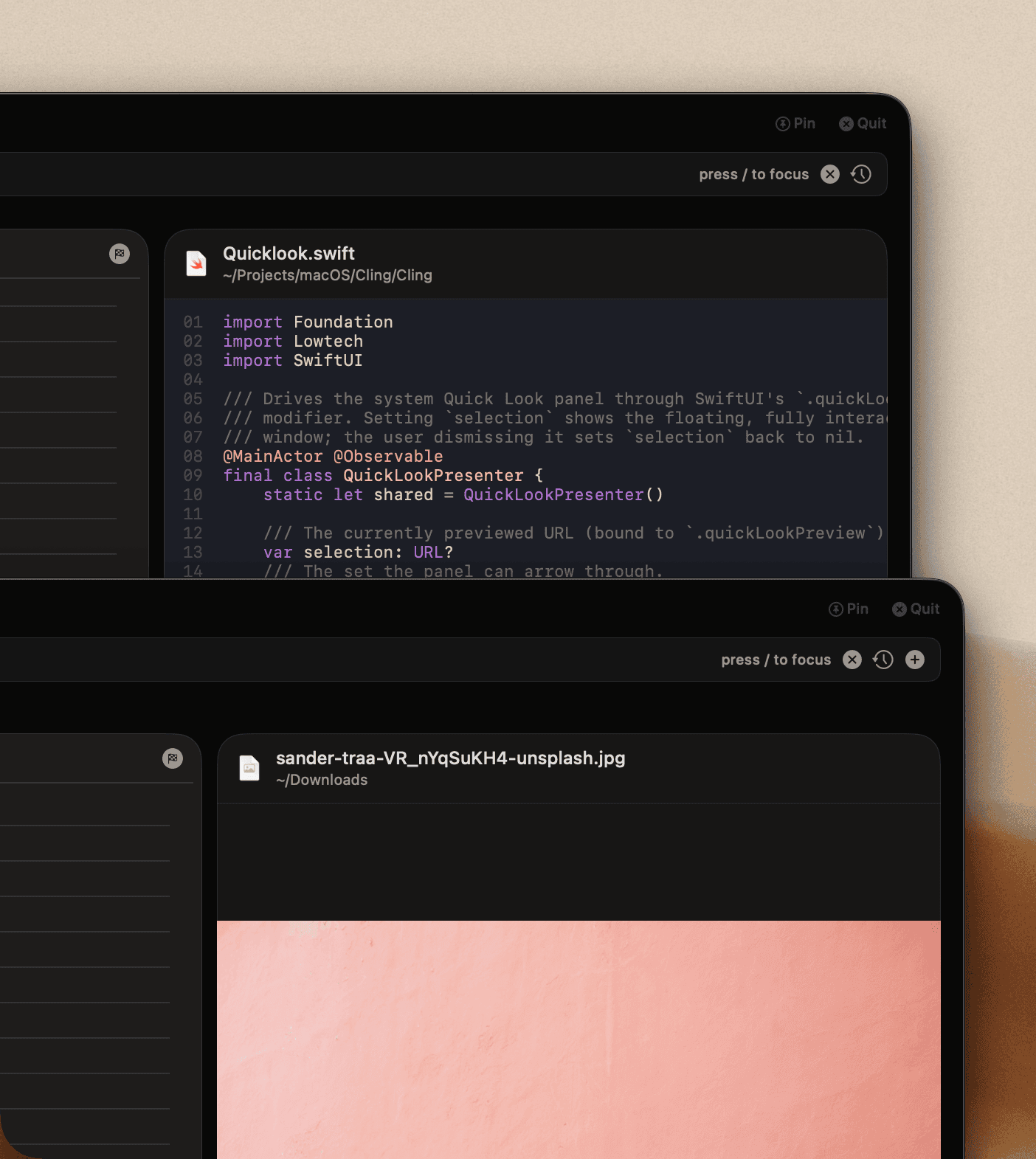
In landscape or a wide browser window, files show in a preview beside the list instead, which can be hidden, and code files are highlighted
Add it to the iPhone Home Screen to use it as an app, with downloads saved through the share sheet and kept on the phone (up to 1 GB in cache)
Downloads over 100 MB ask first, and the size can be changed in Settings > File server
It only answers on private addresses, never on a public one, and with Tailscale it can serve HTTPS on the Mac's Tailscale name
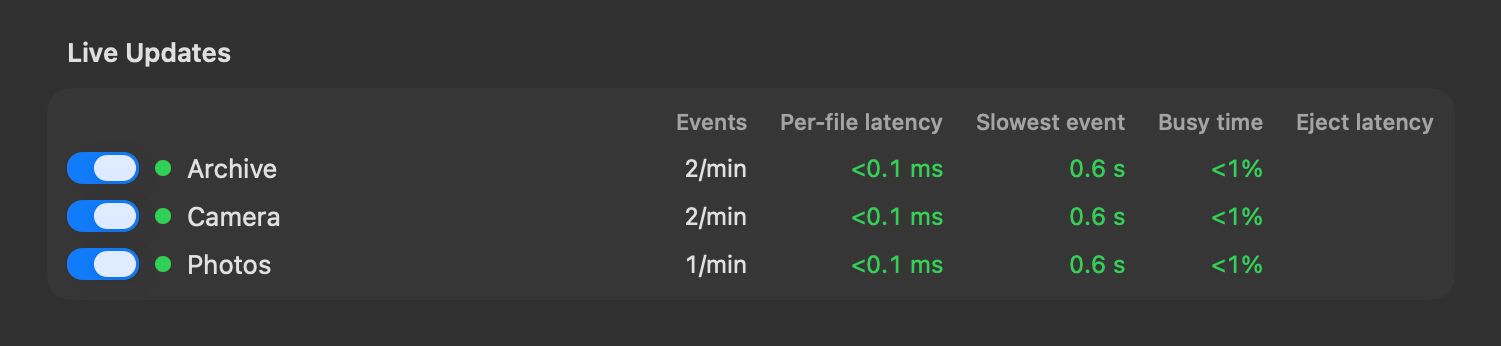


New index engine: huge memory savings, energy impact and CPU usage improvements
in-memory index goes from several GB of RAM to 60-100 MB
full reindexing goes from several minutes down to less than 10 seconds
energy impact on keeping the index up to date on file events becomes completely negligible
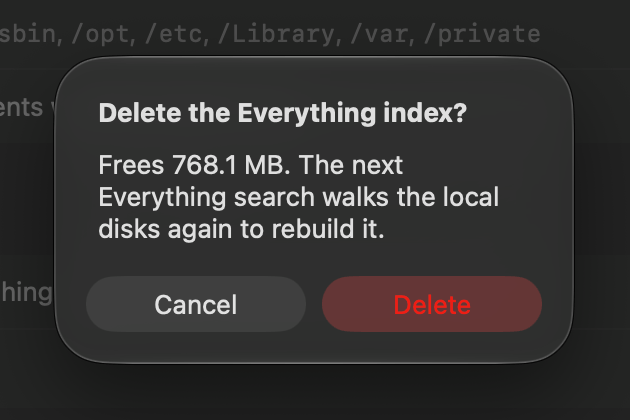
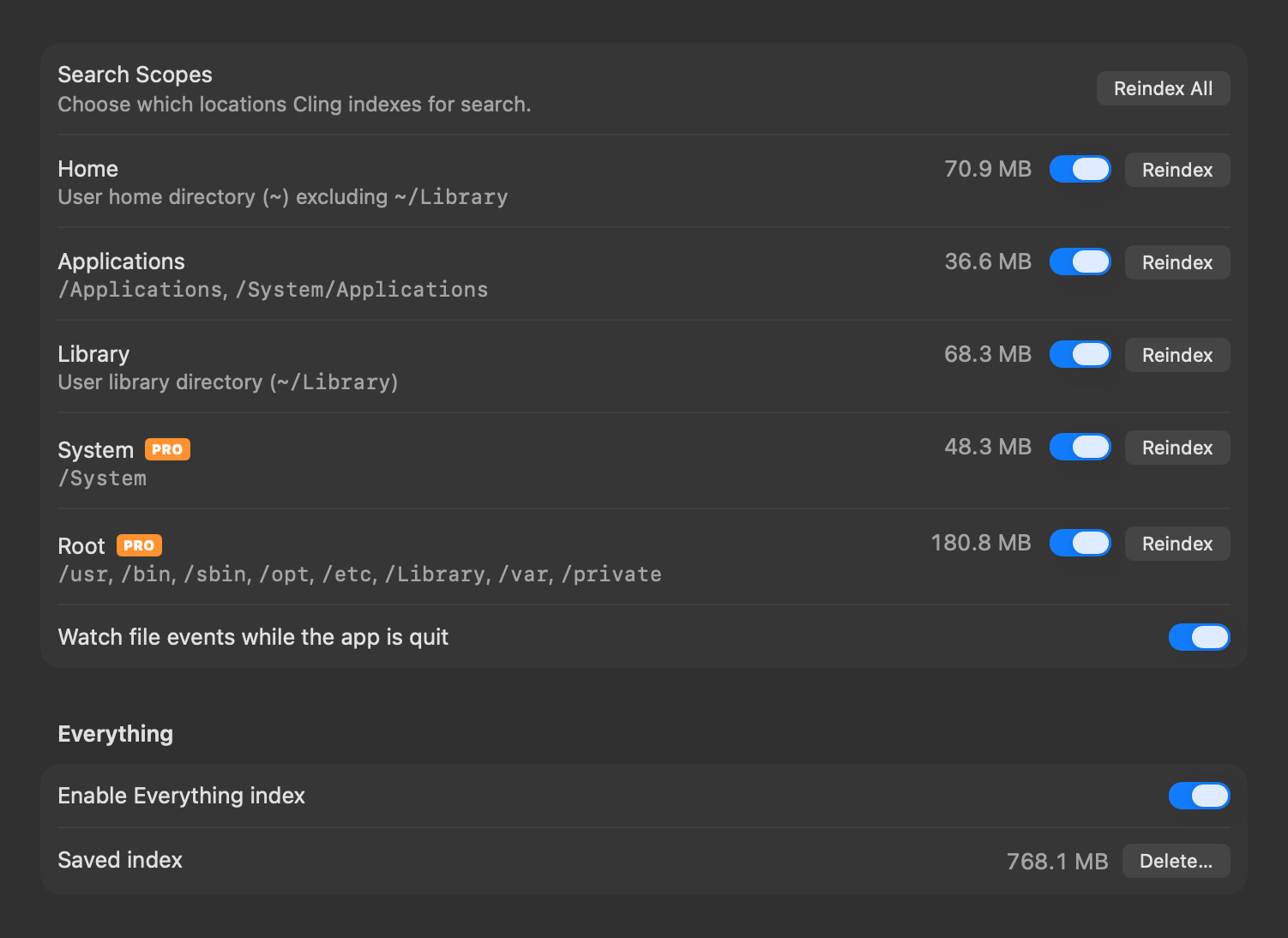
the Everything index: search every file on the
local disks with no ignore rules, toggled with ⌘⇧E or the ✱
in the search bar


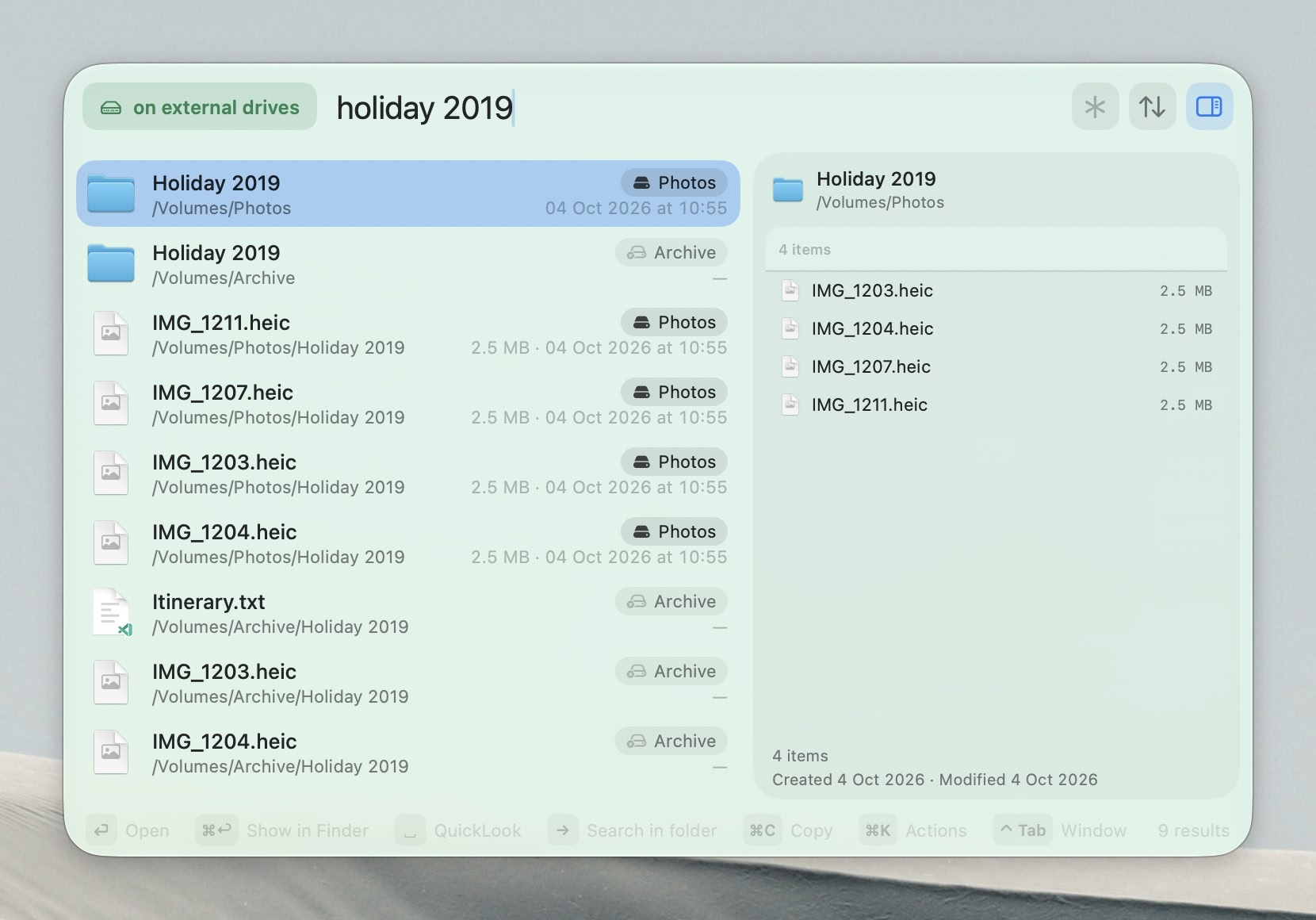
Pick External drives in the filter menu or press
⌥E

You can also pin it to the desktop as a small always available search field
⌃ Tabswitches between the bar and the window


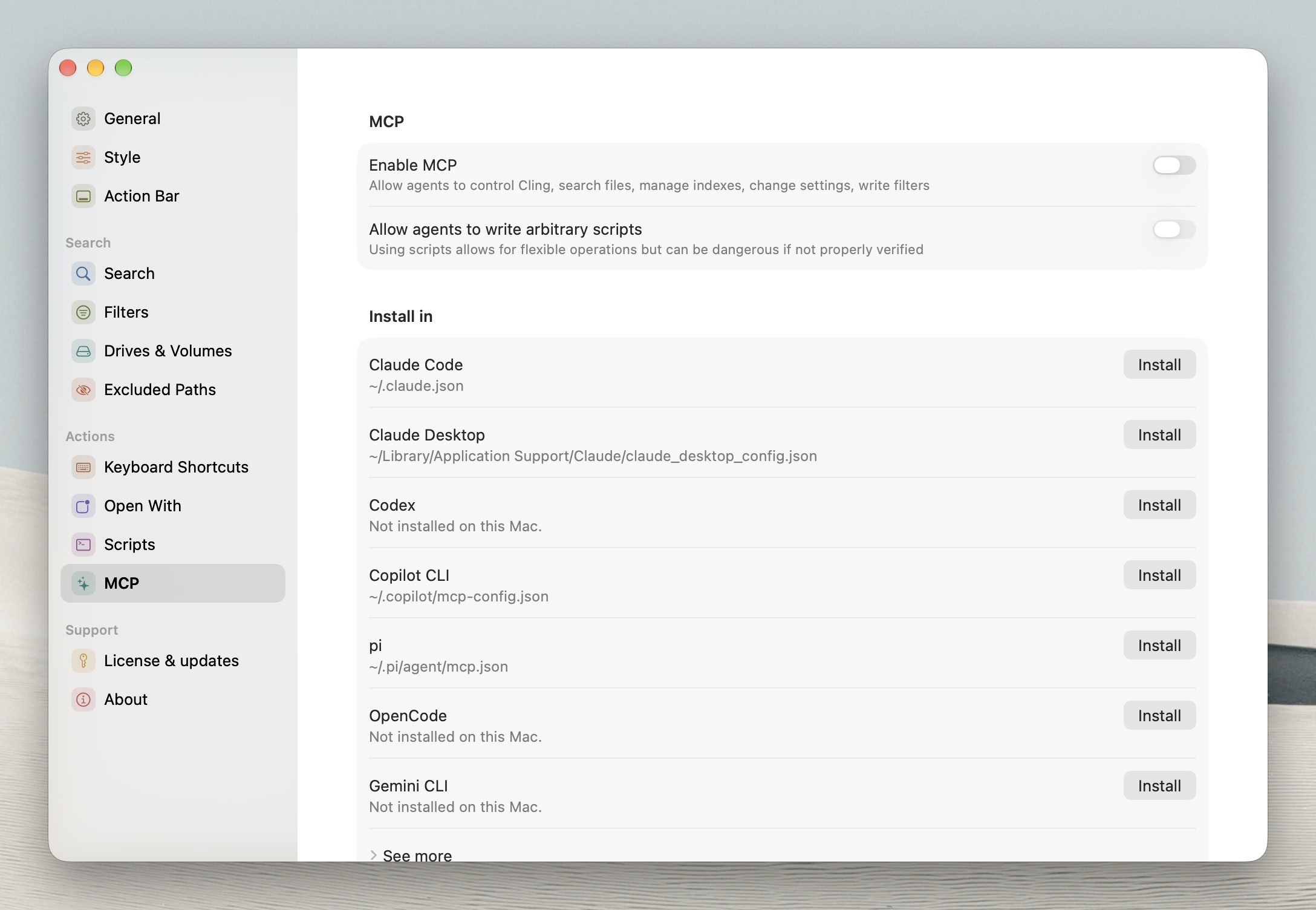
Install it into common agents from Settings > MCP.
Some things you can ask an agent like Claude or Codex to do with Cling:
why doesn't my ~/.ssh/config show up when I search sshcfg?stop indexing rust target folders but keep the binariesindex my external drive and refresh it every daymake a quick filter for Figma and Sketch files on Option Fwrite a script on Cmd Ctrl Z that zips the selected files into one archive on my Desktop

Behaviour can be changed in Settings > General
/ typed in the Reindex excluded path field no
longer jumps to the search bar⌥ letters typed in a sheet no longer open
Quick Look or switch filters⌥ filter shortcuts worked in the window without Pro by
mistake, and now need Pro like the filters themselves

cling logs persist on keeps Cling's debug logs on disk
when a problem needs them, off goes back to the macOS
default! rule reaches inside an ignored folder only when it
names a path there, like !Library/Caches/Clop/*, the same
as in git\r, \n,
\t, \xHH for any byte and \uHHHH
for any characterHome and End select the first or last row,
so the arrow keys carry on from there~/.ssh kept in a dotfiles folder, show under the link's
path, and in: works on that folder~/ paths⌘⌥ stays on Open
WithMinimum query length: Cling waits for 3
characters before searching instead of matching on the first keystroke.
You can configure it in Settings > Search, 1 brings back
the old behaviour
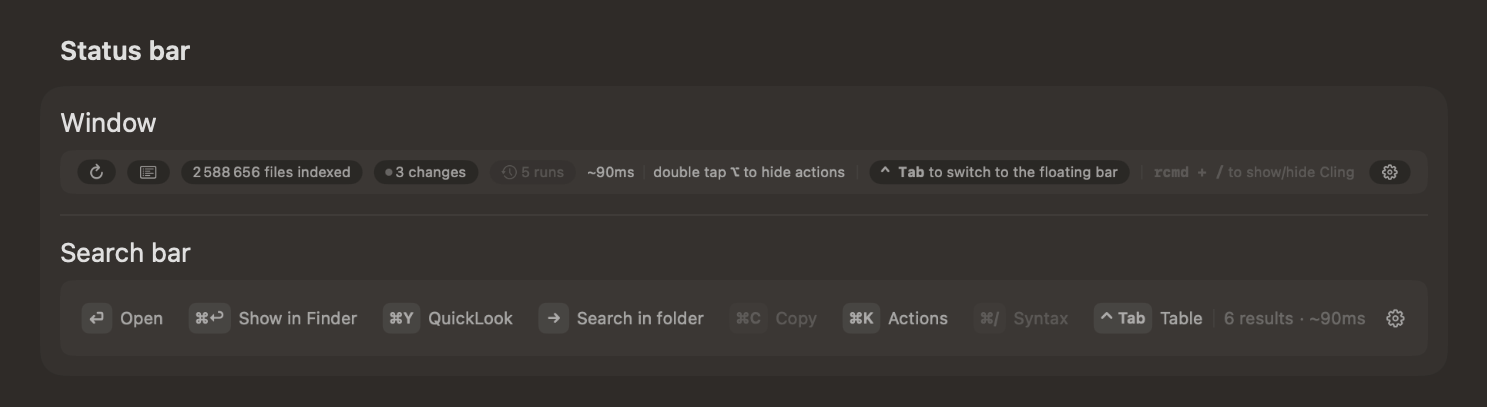
Dim status bar: the bottom bar sits faded and comes back to full strength when you hover it. You can turn it off in Settings > Style
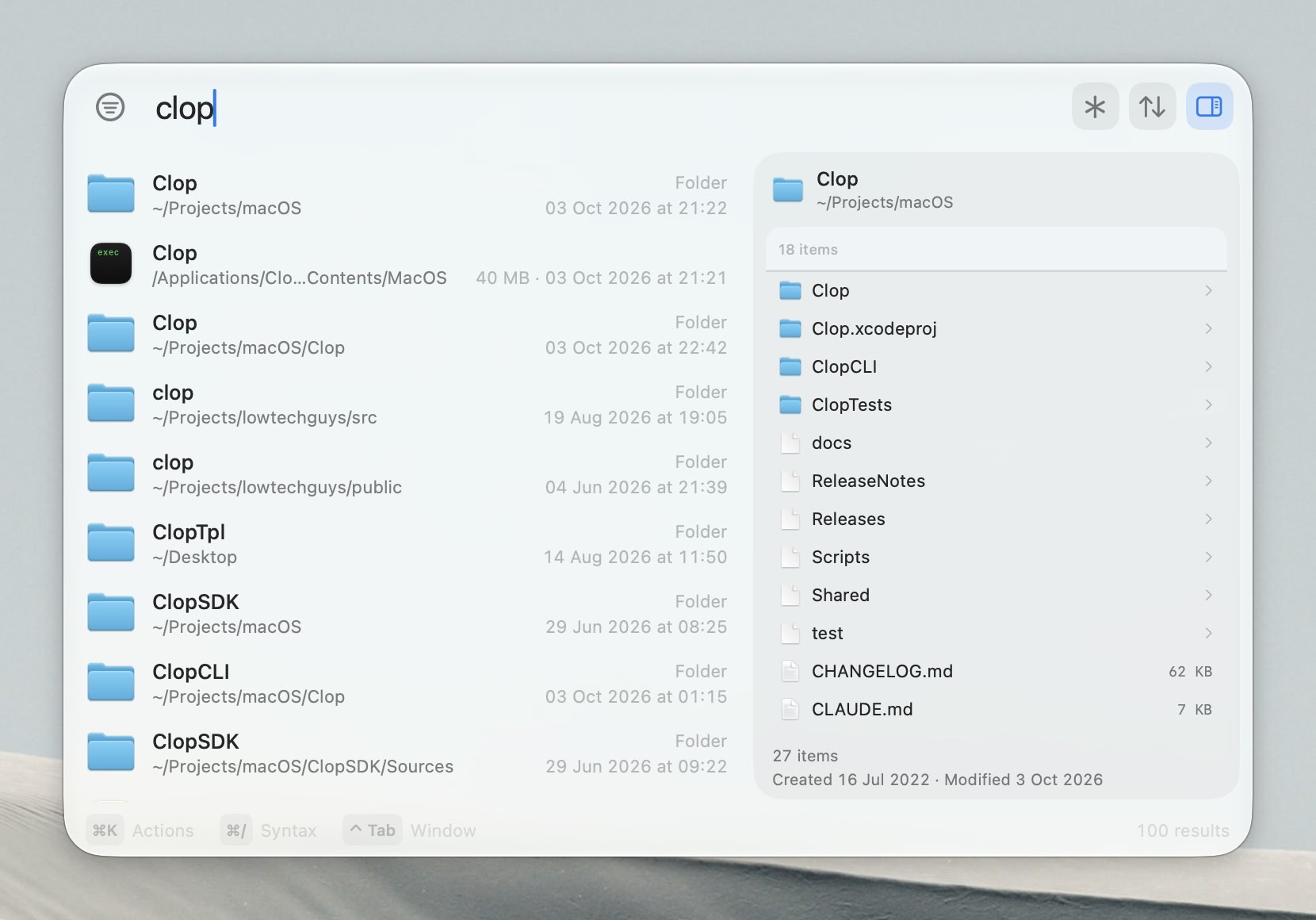
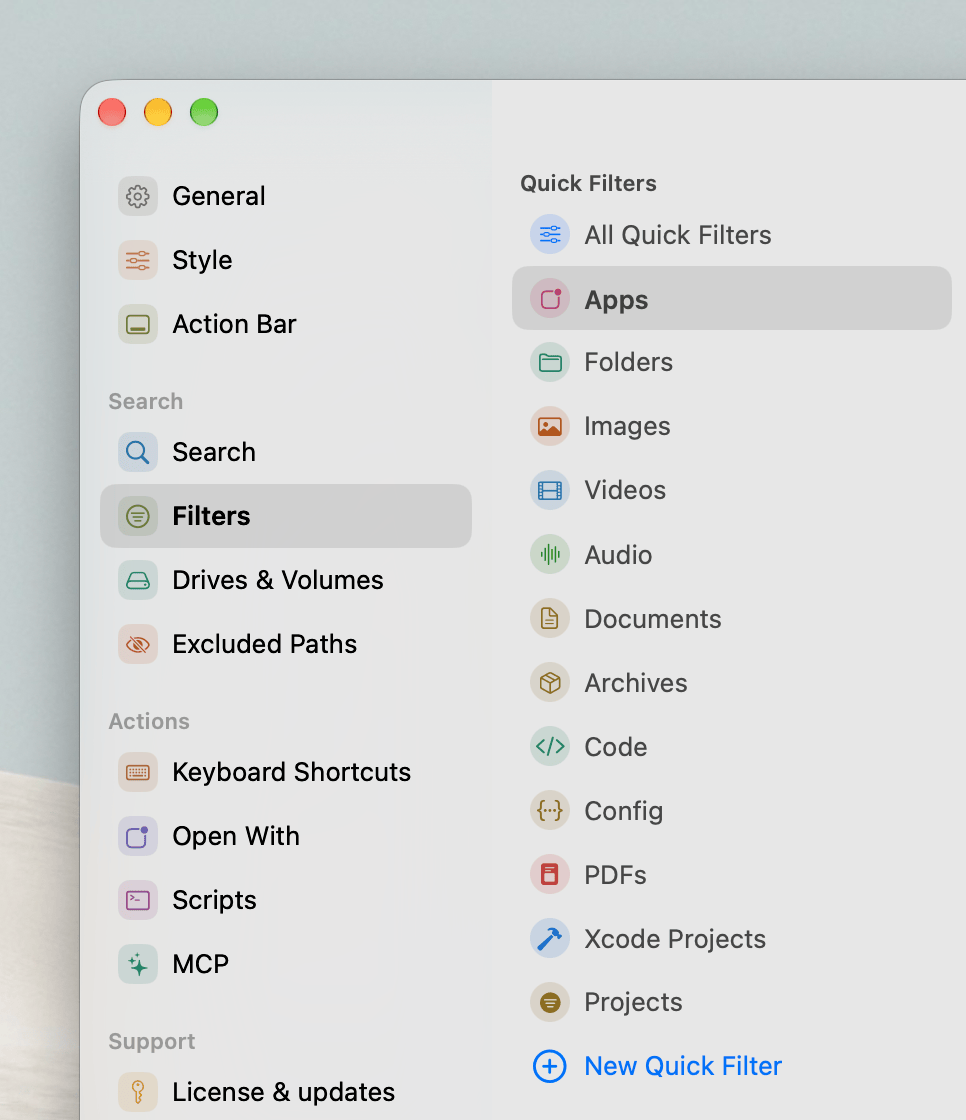
Filter icons and colors: set icons and colors that change the appearance of the Cling window when a filter gets activated to make it more obvious when the search is scoped to a limited set of files
yml can turn up .tomlDynamic text size for the search window:
⌘+ and ⌘- to change it, ⌘0 to
reset
Also in Settings > Interface > Window, adjustable from 80% to 200%
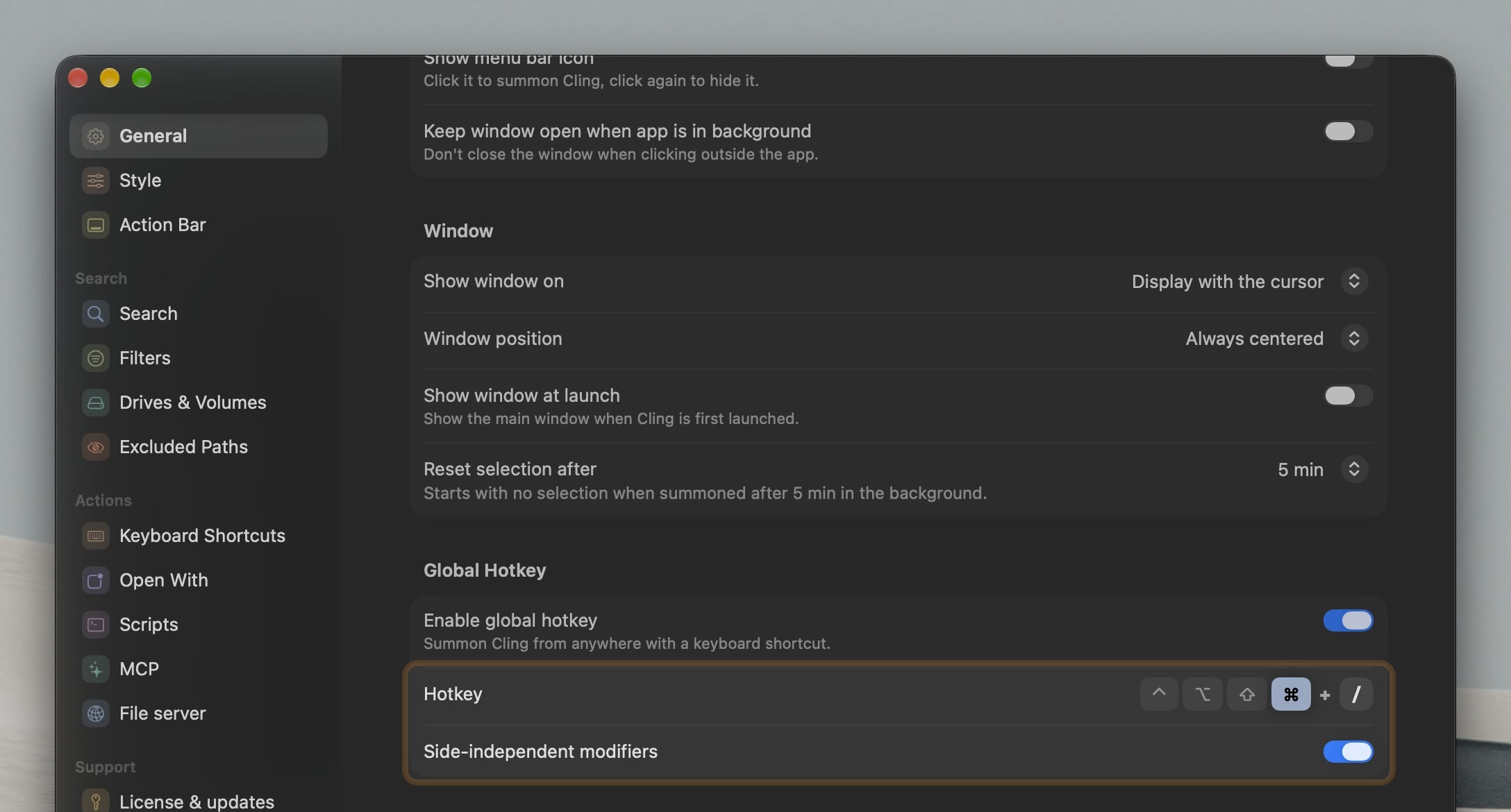
Menu bar icon: click it to show Cling. Off by default in Settings > General
Reset selection after starts a summon with no
selection when Cling has been in the background for a while, so
↓ lands on the first result instead of the row you picked
an hour ago
Set the delay in Settings > General > Window:
1 min,5 min,15 min,1 hour, orNeverto keep the same selected files until a manual selection changeDefaults to
5 min
Turn it on under Matching in Settings > Search
'wordflips a single word back to fuzzy matching
Stash: press ⌘S to pin the selected
files to a stash that stays above the results while you keep
searching
Fully editable:
⌘Sagain unstashes, right-click adds or removes files, and the red trash button in its header (or⌘⇧S) empties it. The stash survives restarts.Stashed rows keep every file action: open, Quick Look, copy, send, drag out, trash
Files can auto-clear after a chosen time, set in Settings -> Open with
Sort shortcuts reorder results from the keyboard, rebindable in Settings, under Shortcuts
⌃NName ·⌃PPath ·⌃SSize ·⌃DDate ·⌃0RelevancePress the same key again to flip between ascending and descending
Hold
⌘to see each column's sort shortcut in its headerClicking the Size or Date Modified column header now sorts largest and newest first; Name and Path still start ascending
Add files to an active room: select more files and press Add to this room in the Transfers panel to put them into a Send Securely link you already shared
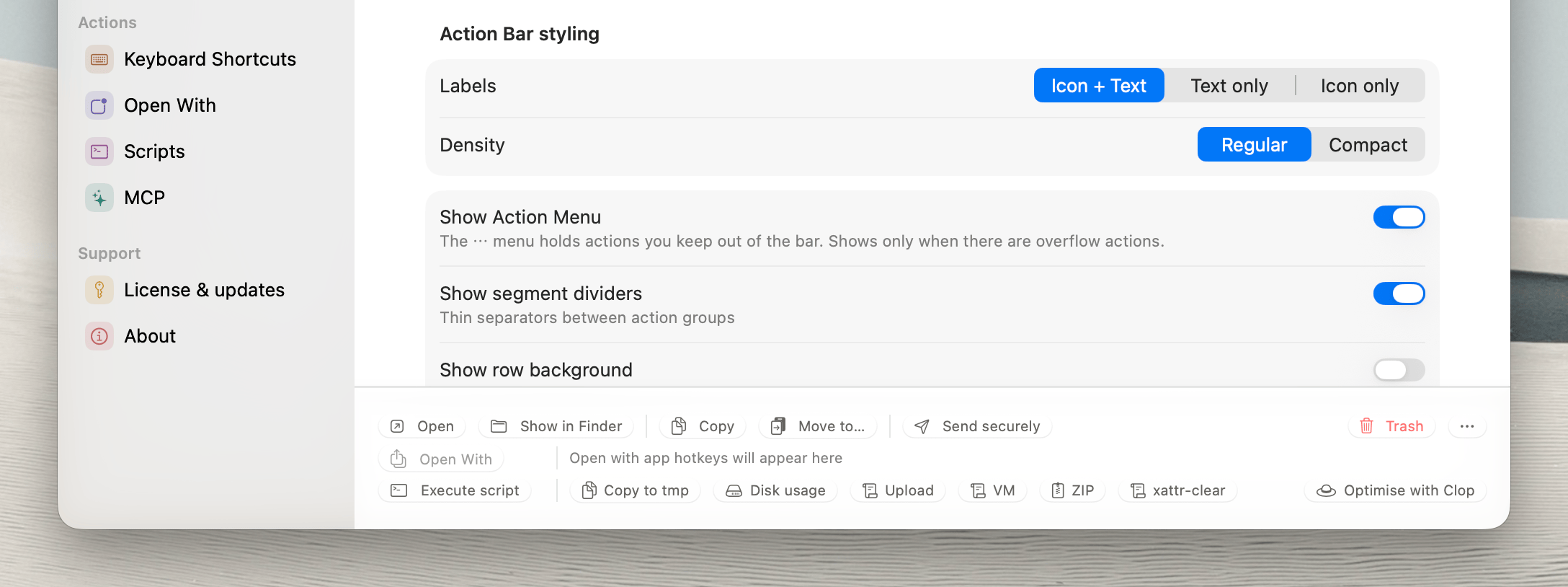
Hide toolbar rows: right-click the action, Open with, or script row for a quick hide option
Double-tap a modifier key of your choice (set in Settings > Style > Rows) to hide or show all three rows at once
With every row hidden, the results table takes over the freed space
⌘⌫ moves the selected files to the trash again, and the
shortcut hints shown while holding ⌘ no longer disappear
for good after trying to trashcling explain tells you whether a path
is in the index, and if it isn't, which rule is keeping it out (a
disabled scope, the blocklist, or an ignore file)⌥ shortcut on the
right again+N more, and the full list shows when you hover.m4a) ranks your own
music, movies, and photos above system and app files, and stops large
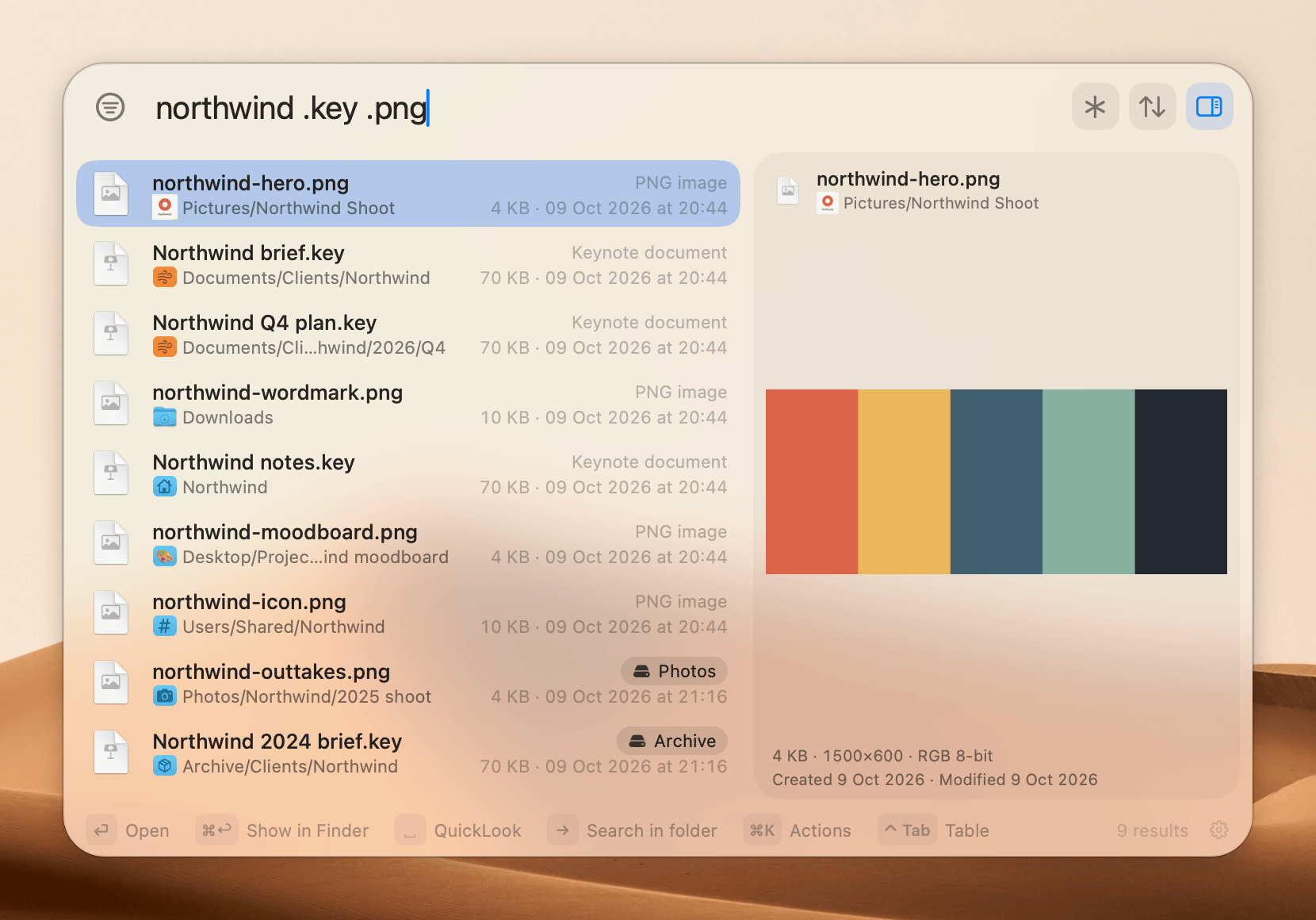
libraries from being cut off before your file shows upSearch operators to filter and exclude results as you type
Exclude:
!wordhides matches ·!.pnghides a file type ·!/shows files onlyExact:
'wordmatches the text exactly, not looselyAnchor:
^word(name starts with it) ·word$(name ends with it)Tap
?in the search bar for the full list, including.png,in:~/Downloads, anddepth:1
Step into folders: select a folder in the
results, press → to search inside it and ← to
step back out
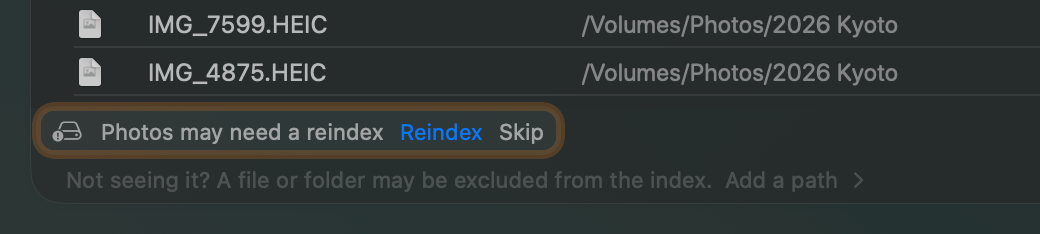
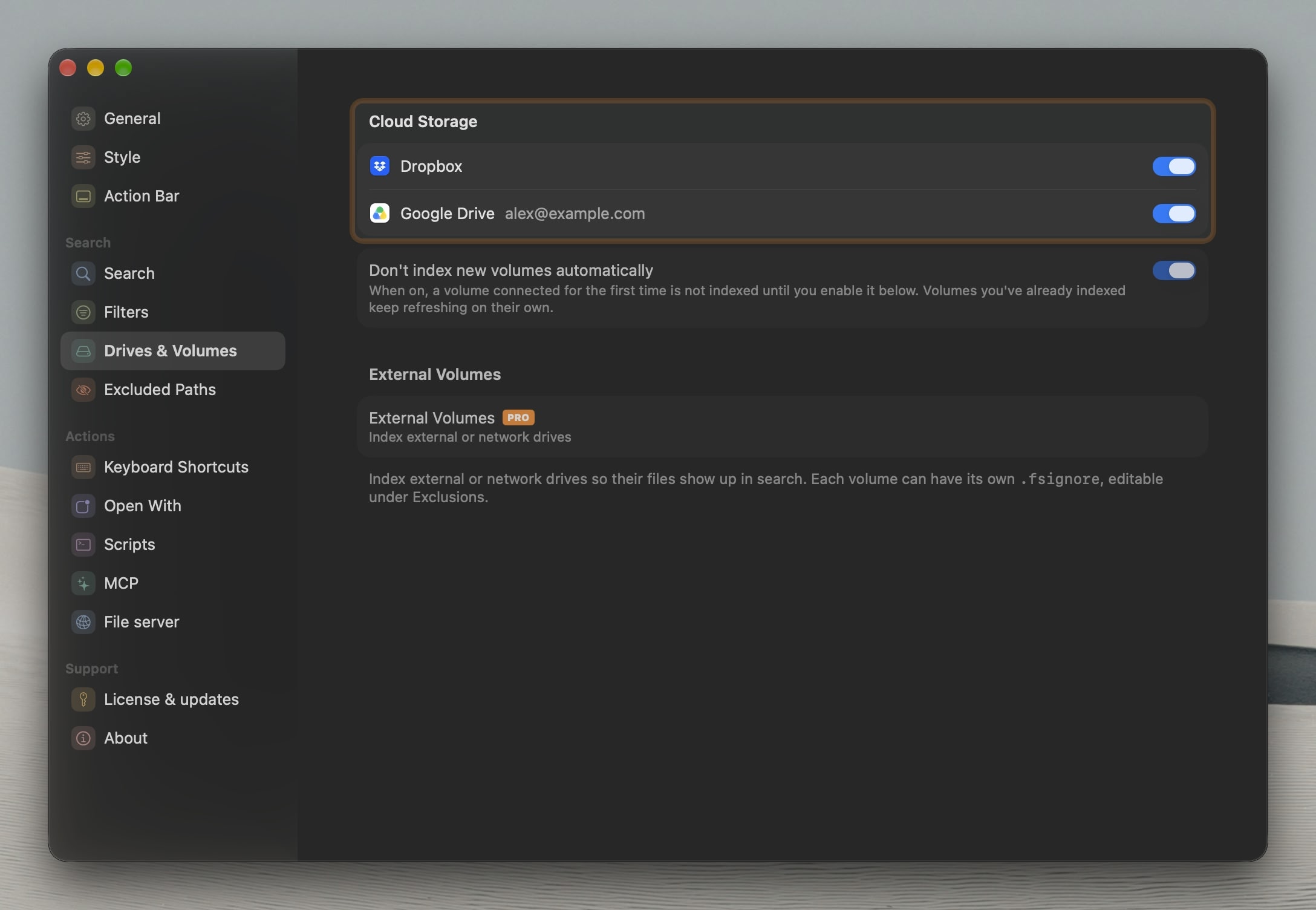
Opt-in indexing for new volumes: a drive or share you connect stays unindexed until you switch it on yourself
Turn on Don't index new volumes automatically in Settings, under Drives & Volumes. It's off by default, so volumes keep indexing on connection unless you change it.
Switch volumes on one at a time; volumes you've already indexed keep refreshing on their own.
Fine-tune index rules before applying them, both when you add an excluded path back and when you exclude files
Click a folder name to match any folder in that spot, or click a file like
clip.mp4to match*.mp4(any file of that type), then*for anything.Edit any rule as plain text, and switch individual rules on or off so only the ones you want apply.
A live check confirms your edited rule still covers the path you picked, and the exclude dialog estimates how many indexed items it would affect.
é or
ñ) match file names that use those accentsin: searches list only what's inside the folder, not
the folder itselfphotos/)
turns up the folder itself, not only its contents1 hour, 1 day, or 1 week, so it
no longer settles on odd intervals like
6 days 23 hoursFiles transfer straight from your Mac, so a link only works while you're sharing it.
Send the selected files without touching the mouse:
⌘U, thenReturnTransfers panel on the Send button shows each active link's download count, a live countdown to expiry, and lets you copy, reschedule, or stop it
A notification tells you when someone finishes downloading a file you sent
⋯ menu, so
the row stays clean and glanceable
Restyle the toolbar to taste: icon-and-text, text-only, or icon-only buttons, regular or compact spacing, optional dividers and background
Decide where each action lives, in the Action bar, the
⋯Action menu, or hiddenEach app is keyed by the first letter of its name; when several apps share a letter, that key opens an app picker
Hold
⌘to reveal every action's shortcut right on its button, or⌘⌥and⌘⌃for the Open With and Scripts rows
Contents/MacOS subfolders
while keeping the executables, skip every node_modules or
build folder, skip the contents of a Photos or Final Cut library, drop a
hidden config or secrets folder wherever it shows upIt names the ignore rule or blocklist entry hiding the file and offers to lift it or add an exception, with no ignore syntax to write by hand
While indexing your Home folder, each project's own
.gitignoreand.ignorefiles are applied, so build output likenode_modules,target, ordistdrops out wherever it appears
⌥⏎ copies them instead
of leaving aliases behindIndexing an app bundle keeps the executable in
Contents/MacOSand the embedded framework binaries, while skipping the rest of the bundle's clutter
Default exclusions cover more cache and build junk: media caches (Adobe, Lightroom, Final Cut), dependency and build folders, simulator runtimes, device backups, and large machine-learning and virtual-machine files
Files kept inside DEVONthink databases, stored in a folder normally hidden from search, now show up in results
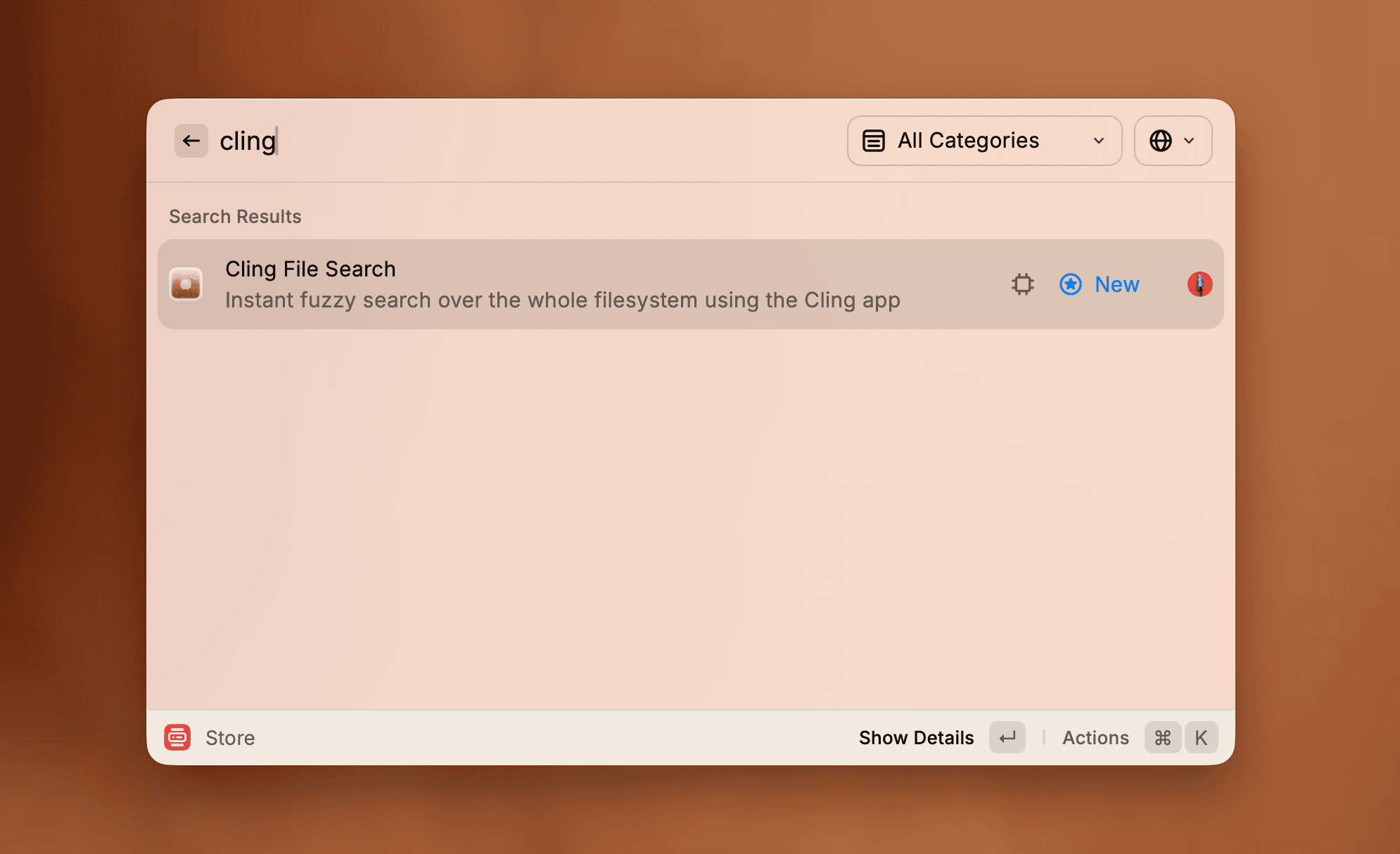
Cling's fuzzy search extension is now generally available in the Raycast store!


⌘⇧P
.dmg, .iso, .zip,
.rar, and more) list their entries without unpacking or
mounting← → keys or the arrows in its header
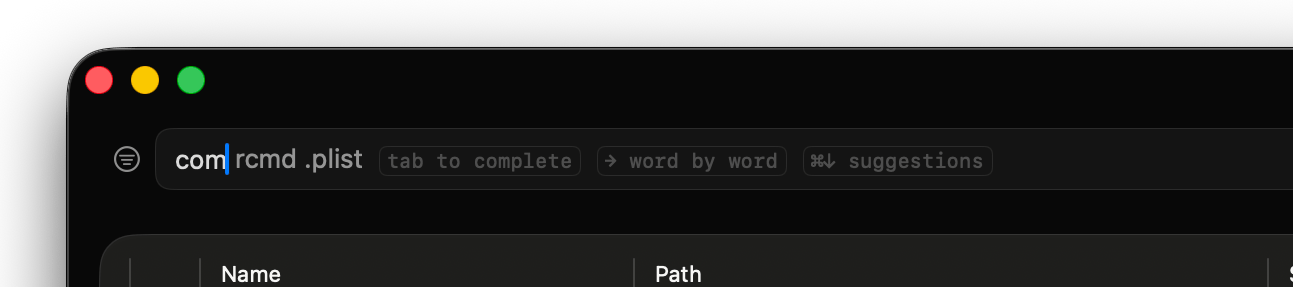
Tab accepts it in full, → takes it one
word at a time⌘↓ opens the full list of matching past searches
⌥Space workfn and caps lock since they are not supported
by the register hotkey API⌥ Option - Enter to have Cling automatically drag
and drop selected files into the last focused field or windowdepth:N query operator caps results to entries at
most N folders below the search root
in: token, e.g.
depth:1 in:~ .png to find ~/Temp/cling.png but
exclude ~/Temp/subfolder/x.png.fsignore files are now
properly excluded from the recents engine, both during reindex and live
indexing~/Documents/Invoices,
that path will be pre-filled next time.fsignore patterns now work correctly~/filen)
cling reindex --scope <name> now resolves volume
names, not just scope namescling reindex --wait actually waits for indexing to
finish again/Users/Shared is presentcling reindex while another reindex is already
in progress now gives a clear message instead of silently doing
nothingcling status --json outputs structured status for
scripting, including per-scope and per-volume progresscling reindex --wait shows live per-scope progress so
you can tell exactly which scope is being worked oncling reindex --scope <name> --wait can safely
attach to an in-progress reindex of that scope instead of hangingcling reindex --cancel to cancel indexing from the
CLIcling status now shows per-scope and per-volume entry
counts and indexing progressFTS_NOSTAT⌘F to ⌘S to
match the Raycast extension and avoid conflicts with the common
Find shortcut.zshrc, .bashrc, config.fish)
instead of replacing them with regular filesOption to see alternate actions in the
toolbarreindex command now accepts volume paths (e.g.
cling reindex --scope /Volumes/MyDrive)~/ or full home dir path when copying
pathsThe search engine has been completely rewritten from scratch. Cling no longer depends on any external tools, everything runs natively inside the app.
fzfExtensions: .pdf .docx to filter by extensionDirs only to search only foldersPre and post-queries to prepend or append query parts
automatically.png icon or
invoice .pdf to narrow results by extensionTabcling command
cling "invoice .pdf" searches for "invoice" with a
.pdf extension filter, just like in the appcling index remove ~/.config removes all files in the
~/.config directory from the indexcling reindex --scope home forces a reindex of the Home
scopecling search --scope library --suffix .app --dirs-only -- "updater"
searches for Updater appsCling is now free to use with Home and
Applications search scopes, with up to 500 results and most
instant actions.
A Cling Pro license unlocks:
Library, System,
RootNotes:
Cling v1 remains available and free forever for users who prefer it, but all new development is focused on v2.

Space as a shortcut for QuickLook when the results
list is focusedfzf with a more limited scope when
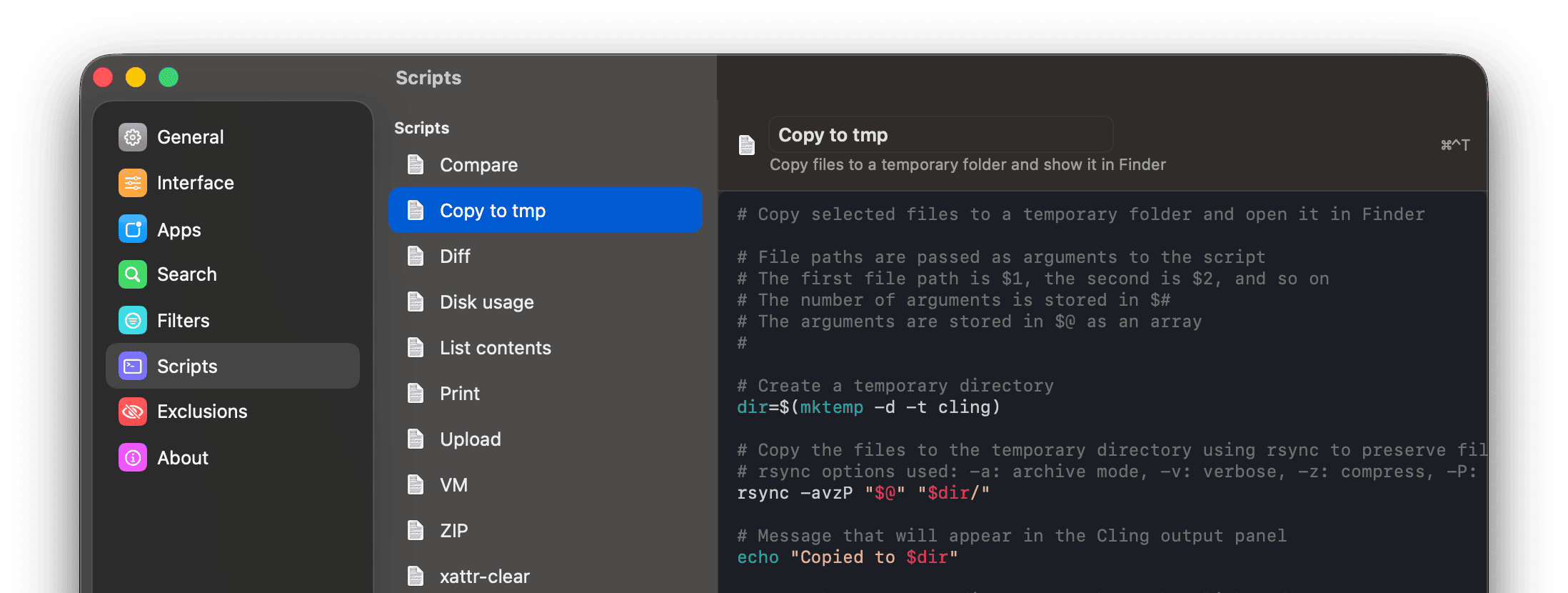
Folder/Volume filters are used to make search faster< 30%)Copy to temporary folderArchiveList archive contents (this one exemplifies how to
limit the extensions on which the script appears and how to show
output)Download Cling 1.0 → Initial release